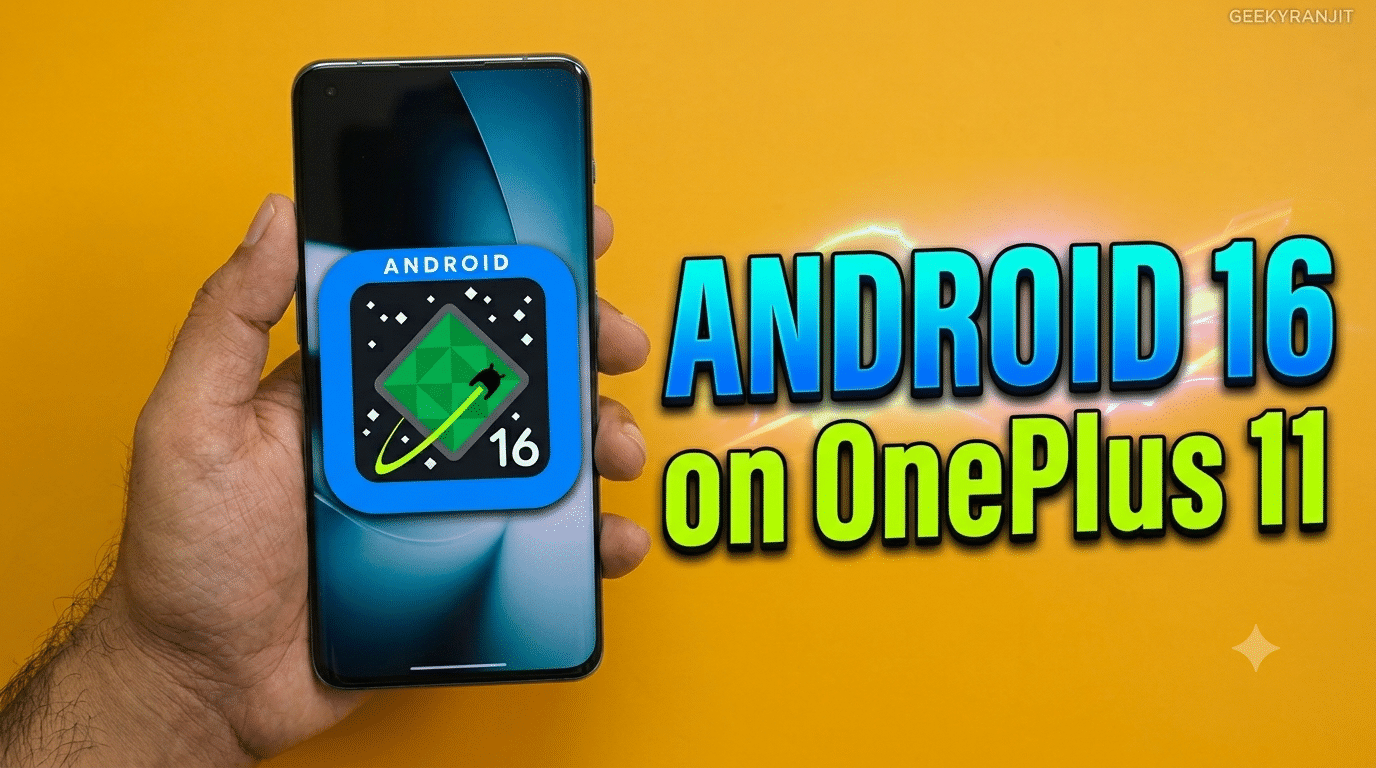
Want to install Android 16 on your OnePlus 11? You are in the right place. This comprehensive, step-by-step guide walks you through the complete process of flashing the unofficial LineageOS 23 custom ROM on the OnePlus 11 (codename: kenzo).
Even though OnePlus has ended official software support for the OnePlus 11 (which shipped with Android 13 and received Android 16 as its final update), you can breathe new life into this Snapdragon 8 Gen 2-powered device with Android 16. This custom ROM delivers the latest Android features, improved performance, better battery optimization, enhanced privacy controls, and a clean AOSP stock Android experience.

Why Install Android 16 on OnePlus 11 a?
The OnePlus 11 (released February 2023) was a flagship smartphone powered by the Qualcomm Snapdragon 8 Gen 2 processor with 16GB RAM and a stunning 6.7 inch LTPO AMOLED display. Despite being a high-performance device, OnePlus ended official software support at Android 15 (OxygenOS 15), leaving users without future major updates or the latest security patches.
Installing Android 16 via CrDroid OS gives your OnePlus 11 a a second life with:
Protection against current known vulnerabilities and exploits.
AOSP-based ROMs are usually leaner and faster than stock firmware.
Android 16 power optimizations can improve battery efficiency.
Run newer apps that require recent Android API levels.
Android 16 Key Features You'll Get on OnePlus 11 a
Android 16 on OnePlus 11 a with CrDroid OS delivers a modern Android experience. Android 16 continues the push toward smoother performance, stronger privacy, and better device longevity. Key highlights include:
Better Resource Management
System Responsiveness
Next-Gen Security
Smarter Performance Tuning
Modern App Compatibility
Stability Refinements
Important Warnings — Read Before Installing Android 16
Device-specific ROM: This Android 16 custom ROM is ONLY for the OnePlus 11 a. Do not flash it on any other device — it will brick your device.
Brick risk: Carefully follow every step in the correct order. Incorrect installation — such as flashing the wrong file, interrupting the process, or skipping the wipe — can permanently brick your OnePlus 11 a. TheUpgradeGuide is not responsible for any damage.
Complete data wipe: Installing this custom ROM erases everything on your OnePlus 11 a — apps, photos, contacts, messages, and files. Create a complete backup before proceeding.
Battery requirement: Charge your OnePlus 11 a to at least 50–60% before starting. An accidental shutdown during the flashing process can leave your device in a non-bootable state.
Warranty void: Unlocking the bootloader and installing a custom ROM will void your manufacturer warranty.
Pre-Installation Requirements for OnePlus 11 a
Make sure you have all of the following ready before starting the Android 16 installation on your OnePlus 11 a:
Unlocked bootloader: Your OnePlus 11 a must have an unlocked bootloader. Use Xiaomi’s official Mi Unlock Tool if you haven’t done this. The process requires linking your Mi account and waiting approximately 7 days.
TWRP Recovery installed: You must have TWRP Recovery installed on your OnePlus 11 a. Watch TWRP installation tutorial for OnePlus 11 a →
Full data backup: Back up all important data — photos, contacts, messages, app data, WhatsApp chats, and files — before starting the installation. Consider using Google Backup and Google Photos for cloud backup.
USB drivers installed: Install the appropriate USB drivers on your PC/Mac. These are needed if you’re using ADB/Fastboot for any part of the process.
XDA Forum Thread: CrDroid OS for OnePlus 11 a — XDA Forum →
Always check this XDA Forum thread for the latest build updates, known bugs, required patches, firmware requirements, and community feedback before installing.
Download Android 16 ROM & GApps for OnePlus 11 a
CrDroid OS ROM (AOSP-Based Android 16) for OnePlus 11 a
Google Apps (GApps) for Android 16 ARM64 – Choose One Package
Not sure which GApps to pick? Read our complete GApps compatibility guide ->
Quick Installation Overview
Short on time? Here’s the 5-step summary of how to install Android 16 on your OnePlus 11 a. Scroll down for the detailed guide with screenshots.
- 1Download the CrDroid OS Android 16 ROM & GApps for OnePlus 11 a.
- 2Boot your OnePlus 11 a into TWRP custom recovery mode.
- 3Wipe system, vendor, data, cache, and dalvik cache partitions.
- 4Flash the Android 16 ROM zip followed by the GApps zip via TWRP Install.
- 5Wipe cache, reboot, and enjoy Android 16 on your OnePlus 11 a!
Step-by-Step: Install Android 16 on OnePlus 11 a
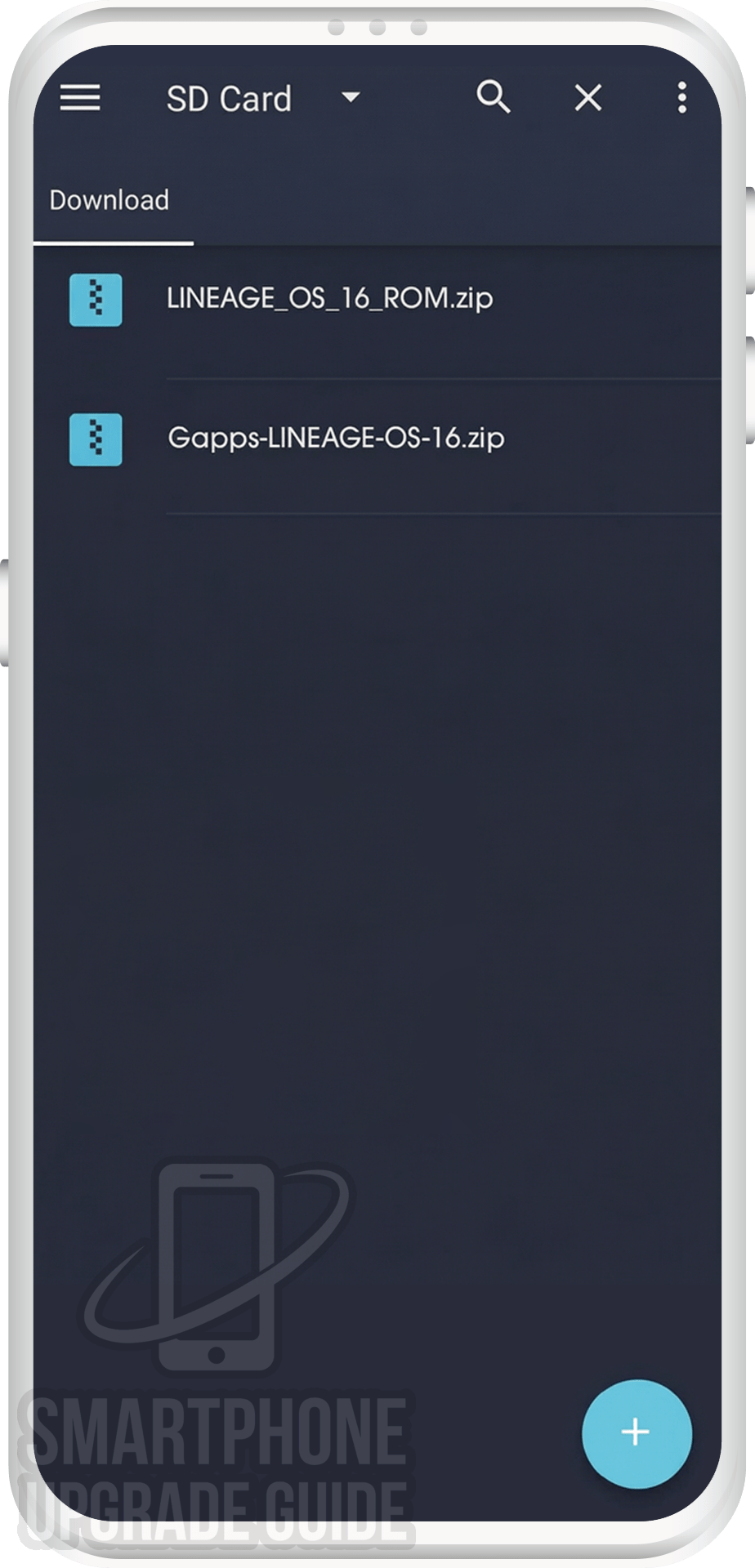
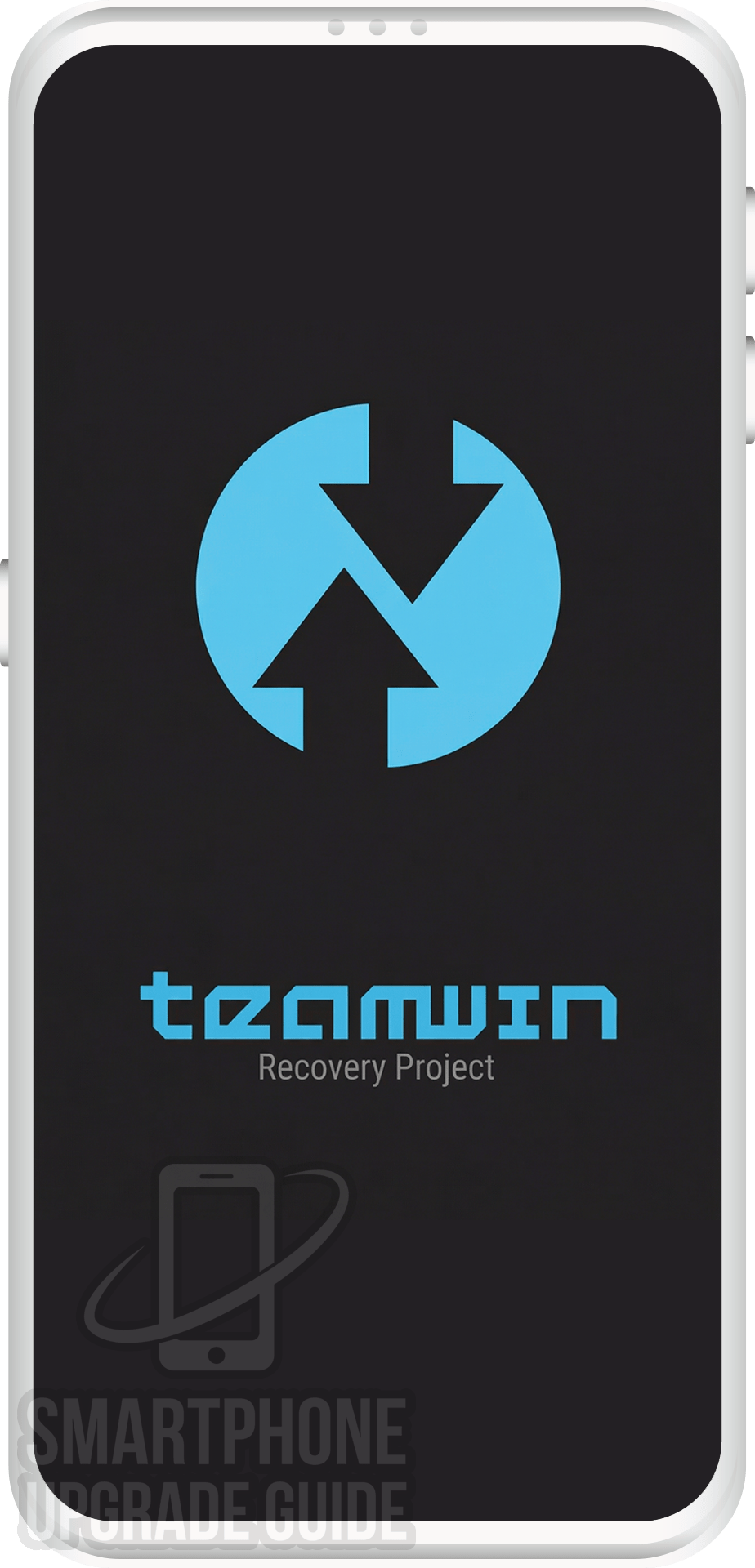
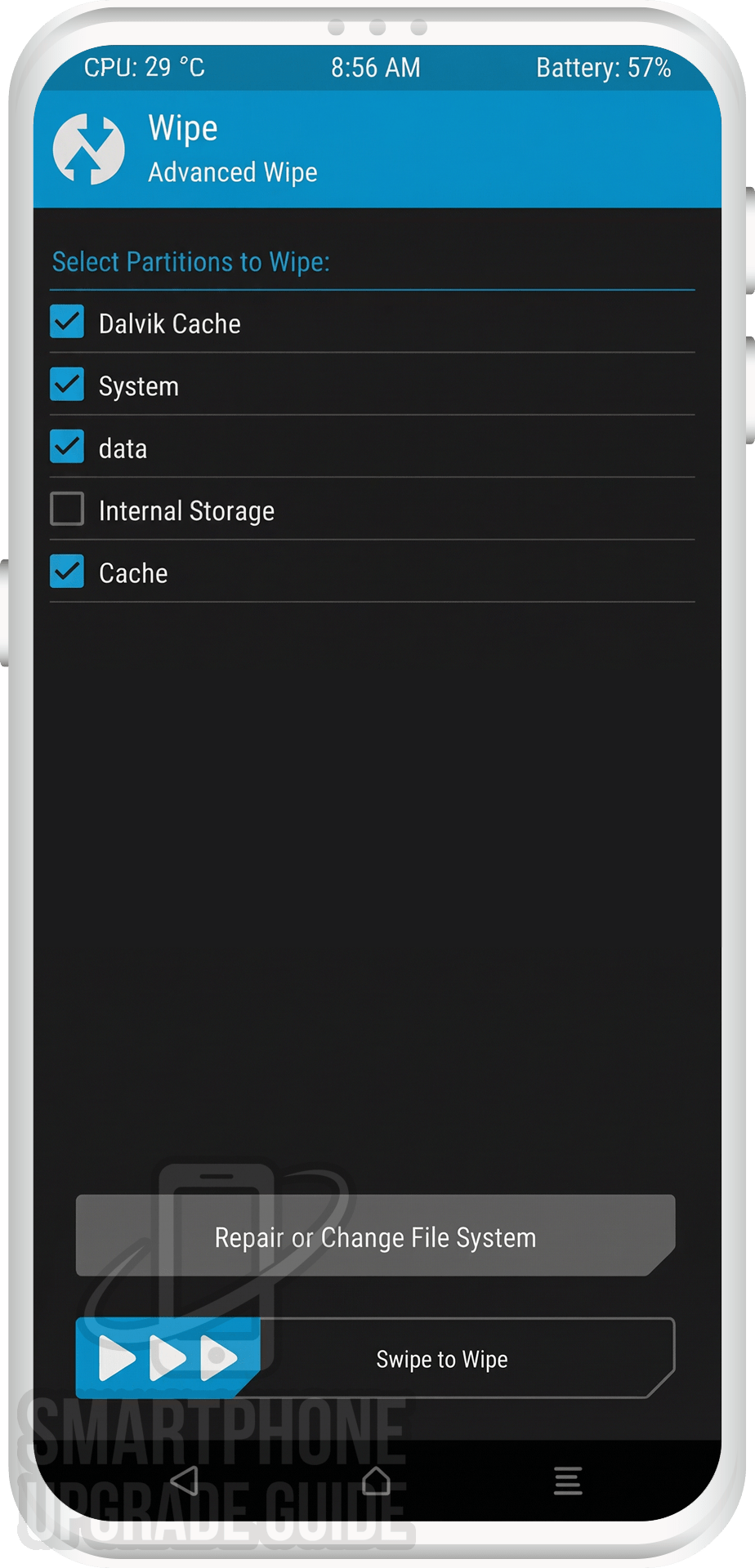
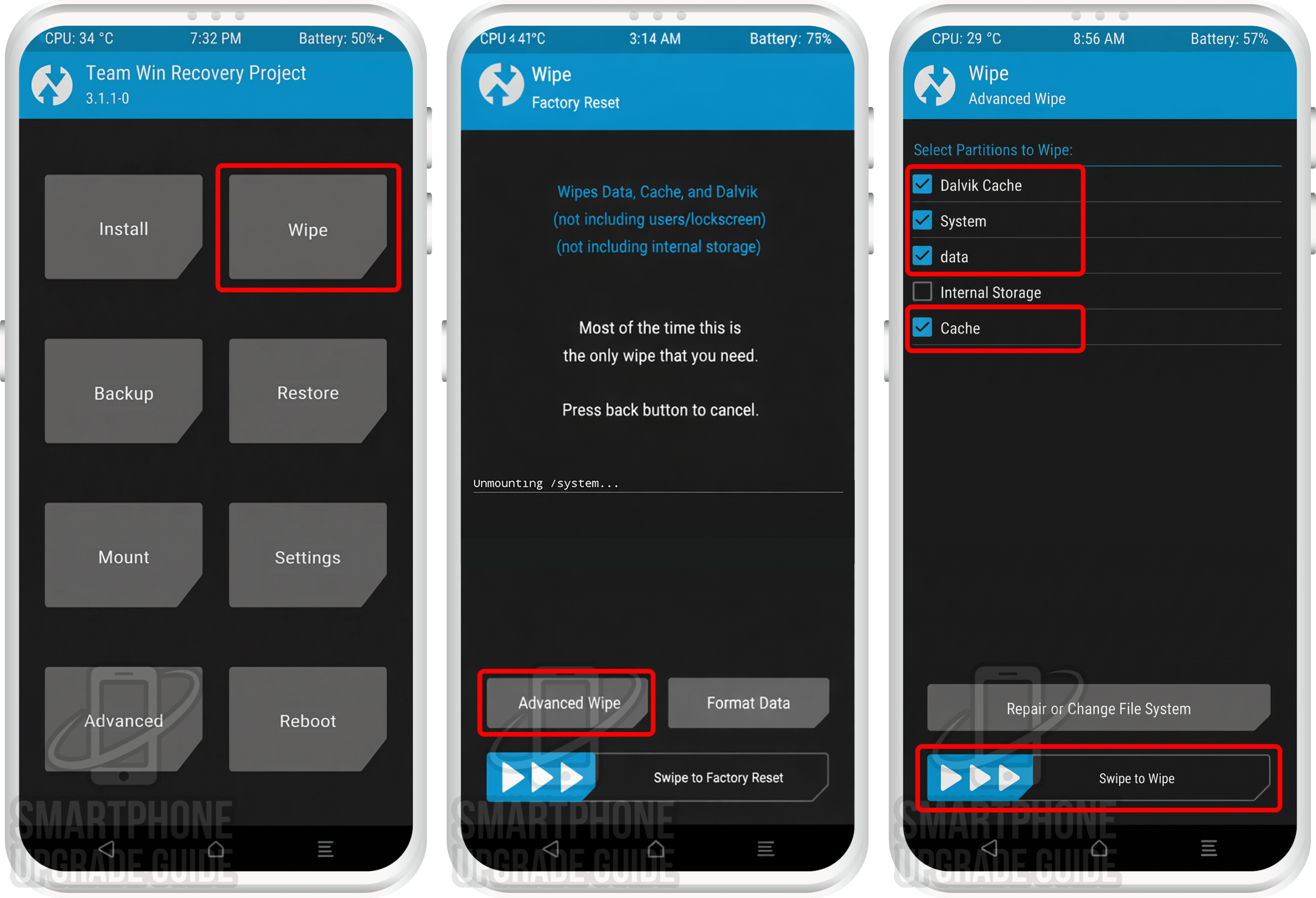
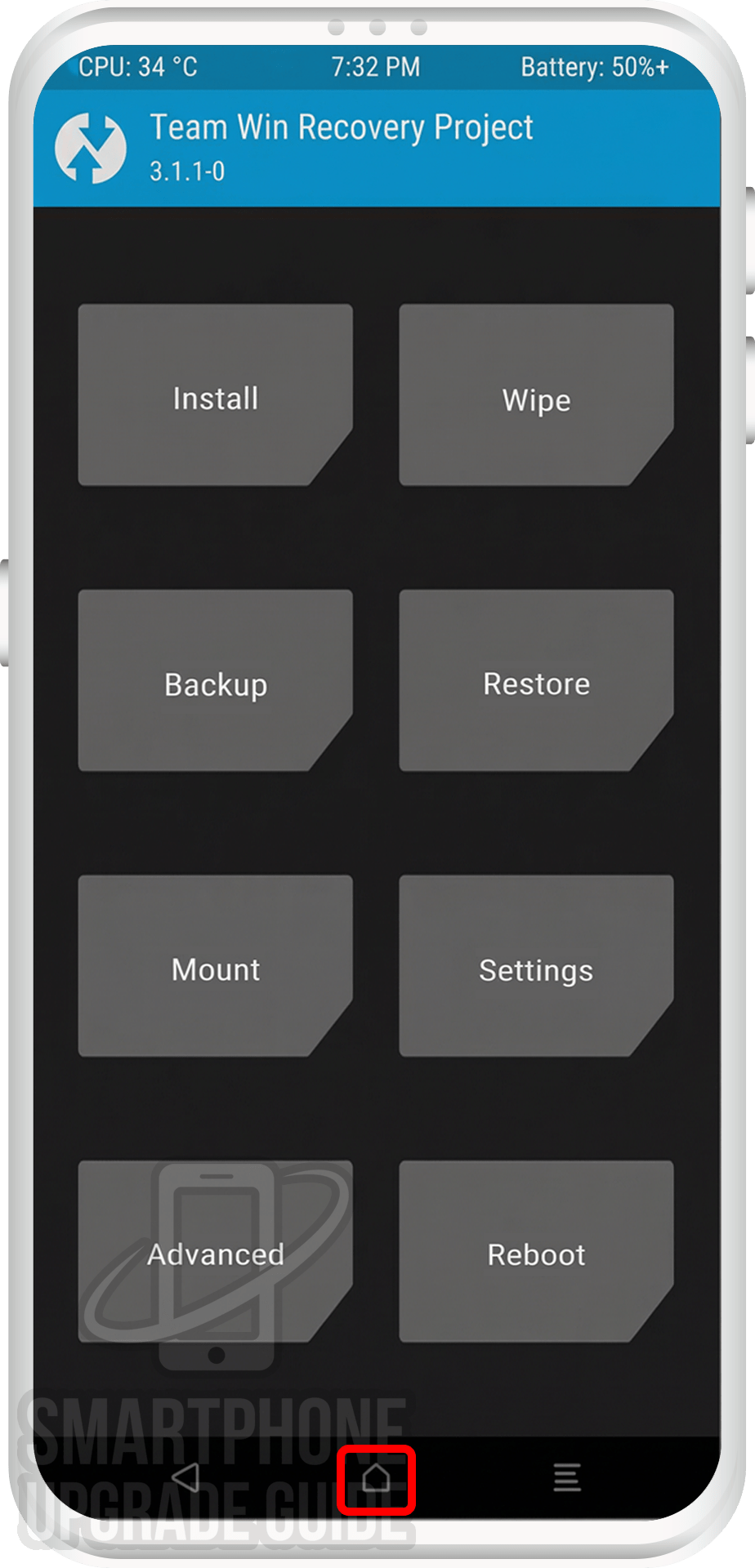
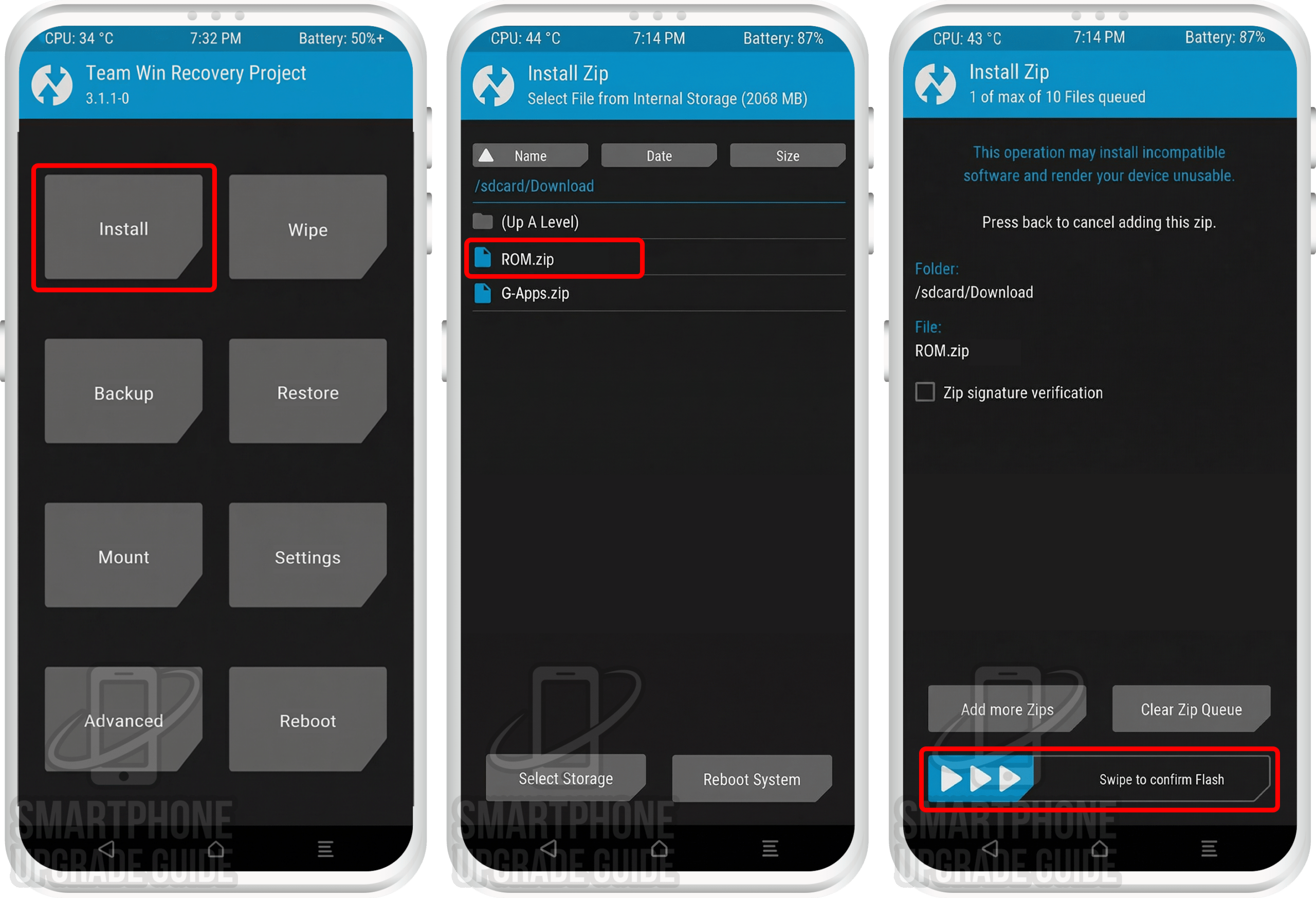
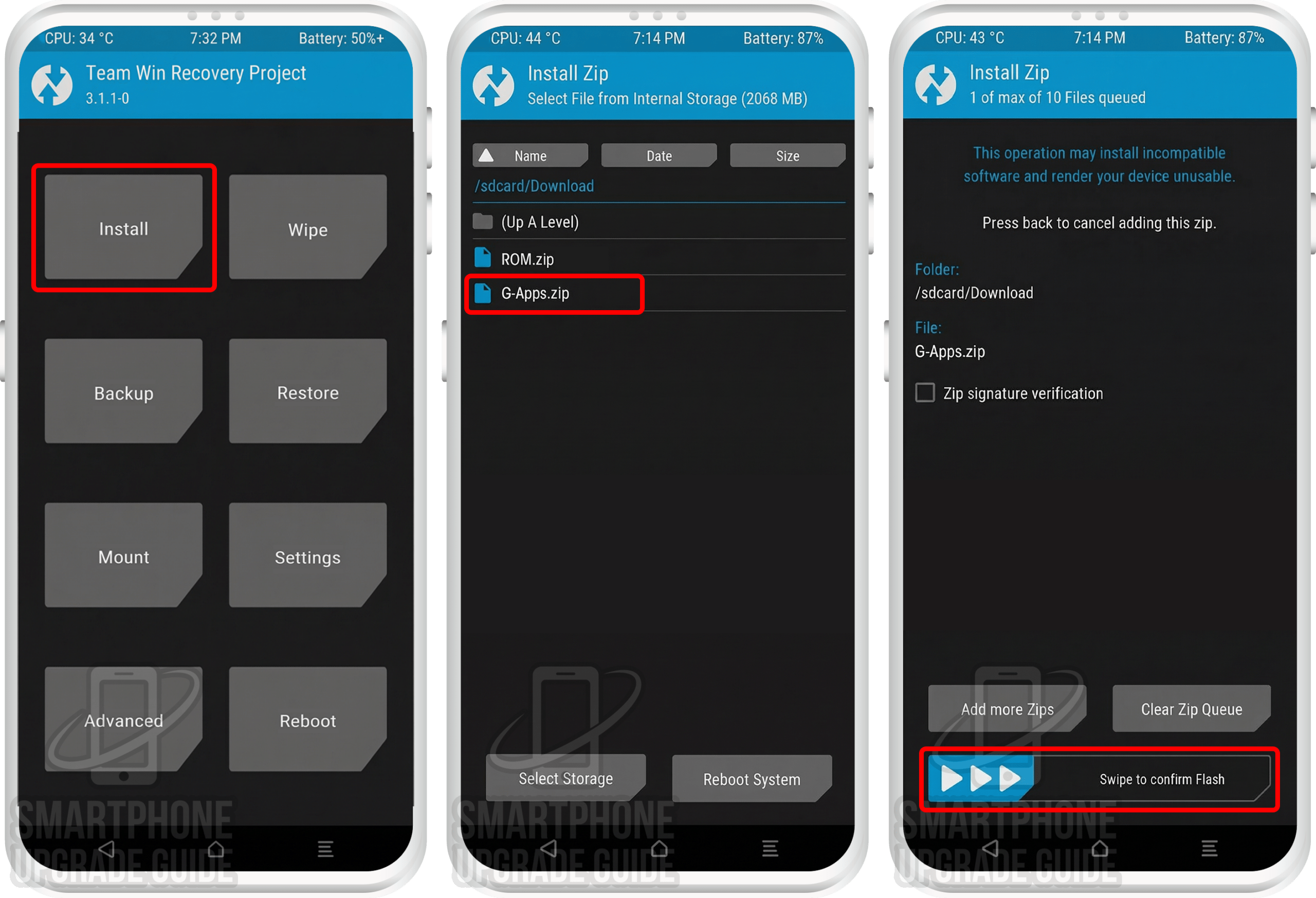
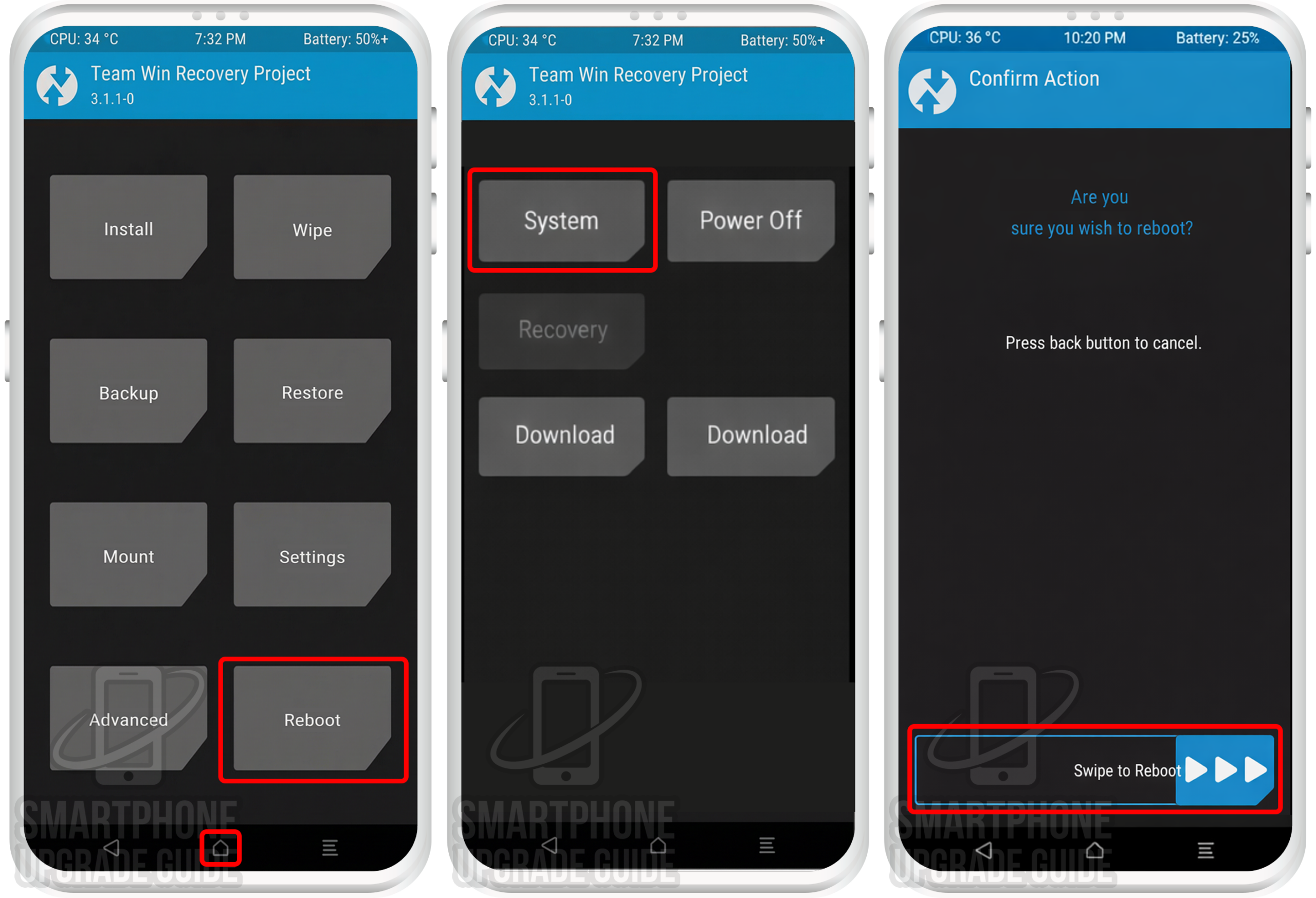
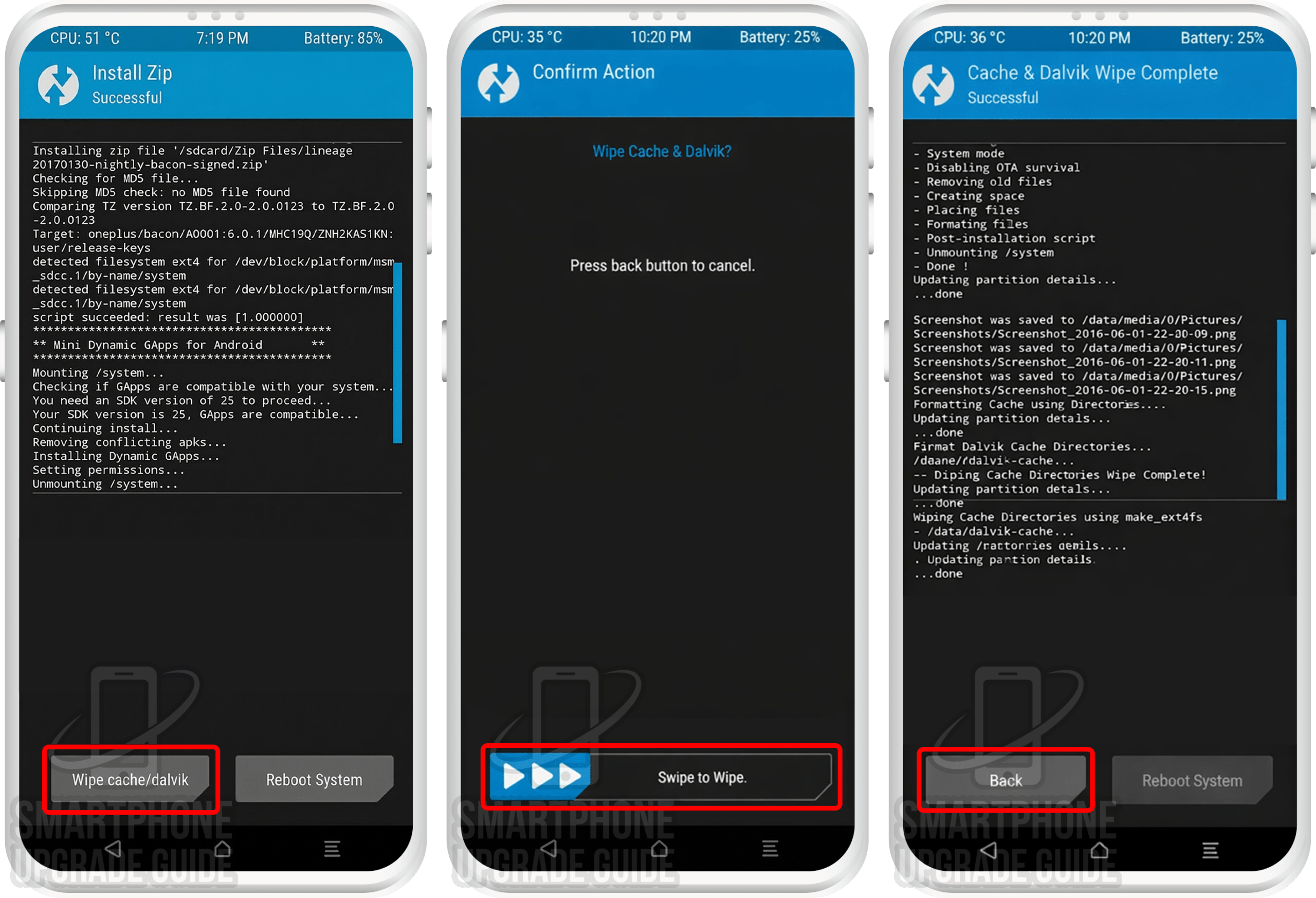
Android 16 Successfully Installed on Your OnePlus 11 a!
Congratulations! You’ve successfully installed Android 16 (CrDroid OS) on your OnePlus 11 a. Enjoy the latest Android features, improved performance, enhanced security, and a clean stock Android experience on your refreshed device!
What’s Working & Not Working on Android 16 (OnePlus 11 a)
Based on the XDA Forum thread and community reports, here’s the current status of features on the CrDroid OS (Android 16) ROM for the OnePlus 11 a. Note: This may vary between builds, so always check the latest forum post.
Working
- ✅ Phone calls & SMS
- ✅ Wi-Fi & Hotspot
- ✅ Mobile data (4G LTE)
- ✅ Bluetooth & audio
- ✅ Camera (photo & video)
- ✅ GPS & location
- ✅ Fingerprint sensor
- ✅ NFC
Known Issues
- ⚠️ Minor camera quirks in some modes
- ⚠️ Some hardware features may vary by build
Always check the XDA Forum thread for the most up-to-date bug list for your specific build version.
Troubleshooting Common Issues
🔄 Stuck on Boot Animation (Bootloop)
If your OnePlus 11 a is stuck on the boot animation for more than 15 minutes, it may be bootlooping. Reboot into TWRP (Power + Vol Up), perform a full wipe (System, Data, Cache, Dalvik), and re-flash the ROM and GApps. Make sure you’re using compatible GApps for Android 16 arm64.
❌ “Error 7” or “Zip Verification Failed”
This usually means you’re flashing a ROM not built for your device. Double-check that the ROM zip is specifically for the OnePlus 11 a. Also ensure your TWRP version is up-to-date and compatible with Android 16 ROMs.
📱 No Mobile Data or Signal After Installation
You may need to flash the correct firmware (baseband/modem) before installing the ROM. Check the XDA Forum thread for the recommended firmware version for your build of CrDroid OS.
🔙 How to Restore Back to Stock ROM
If you want to go back to the stock ROM: (1) restore your Nandroid Backup via TWRP → Restore, or (2) download the official stock ROM from the manufacturer and flash it using the appropriate flash tool on your PC. This will completely restore your OnePlus 11 a to factory stock condition.
Frequently Asked Questions — Android 16 on OnePlus 11 a
Here are answers to the most commonly asked questions about installing and using Android 16 (CrDroid OS) on the OnePlus 11 a:
Is the Android 16 ROM for OnePlus 11 a stable enough for daily use?
The CrDroid OS (Android 16) ROM for the OnePlus 11 a is an unofficial build. Core features — including phone calls, Wi-Fi, mobile data, camera, Bluetooth, GPS, and the fingerprint scanner — work well in most builds. Some minor bugs may exist depending on the build version. We recommend checking the XDA Forum thread for the latest known issues before installing it as your daily driver.
Will installing a custom ROM void my OnePlus 11 a warranty?
Yes, unlocking the bootloader and installing a custom ROM voids the manufacturer warranty. However, since the OnePlus 11 a was released in September 2019, virtually all units are well past their warranty period, so this shouldn’t be a concern for most users.
Can I go back to stock ROM after installing Android 16 on my OnePlus 11 a?
Absolutely. You have two options: (1) Restore your Nandroid Backup through TWRP Recovery to return to your exact previous ROM state, or (2) Download the official stock ROM from the manufacturer’s website and flash it using the appropriate flash tool to perform a clean restore to stock firmware.
Which GApps package should I use with Android 16 on OnePlus 11 a?
You can choose from four popular options: LiteGApps (recommended for minimal footprint), NikGApps (offers granular control over which Google apps to install), MindTheGApps (balanced package), or BiTGapps (lightweight alternative). All must be the ARM64 variant for Android 16 (API 36). Read our complete GApps compatibility guide to choose the best option for your needs.
Do I need an unlocked bootloader to install Android 16 on OnePlus 11 a?
Yes, an unlocked bootloader is a mandatory prerequisite. Without it, you cannot install TWRP Recovery or flash any custom ROM. Use the manufacturer’s official unlock tool to request a bootloader unlock. The process typically involves a waiting period before the unlock is approved.
Does the Android 16 ROM support the OnePlus 11 a’s fingerprint scanner?
Yes, in most CrDroid OS builds for the OnePlus 11 a, the fingerprint scanner works correctly. However, functionality can occasionally vary between different build versions. If the fingerprint scanner isn’t working after installation, try updating to the latest build or check the XDA Forum for any required patches.
How do I update the Android 16 ROM on my OnePlus 11 a after installation?
To update to a newer build of CrDroid OS: Download the latest ROM zip from the LineageOS download page, transfer it to your device, reboot into TWRP, and flash the new ROM zip over the existing installation (this is called a “dirty flash”). Then wipe cache/dalvik and reboot. A full data wipe is usually not needed for minor updates, but always check the XDA thread for update-specific instructions.
Is the Xiaomi Mi CC9 the same as the OnePlus 11 a for custom ROM installation?
Yes, the Xiaomi Mi CC9 and OnePlus 11 a are the same hardware device sold under different names in different regions. The Mi CC9 was the Chinese variant, while the OnePlus 11 a was the global/international variant. Both use the exact same ROM, TWRP recovery, firmware, and kernel files. You can follow this same guide for either device.
Have questions or ran into issues while installing Android 16 on your OnePlus 11 a? Drop a comment below and we’ll help you out! You can also get support from the XDA Forum community where the ROM developer and experienced users actively respond to questions.