
Want to install Android 15 on your Realme Q5? You are in the right place. This comprehensive, step-by-step guide walks you through the complete process of flashing the unofficial LineageOS 22 custom ROM on the Realme Q5 (codename: RMX3478).
Even though Realme has ended official software support for the Realme Q5 (which shipped with Android 12 and received Android 15 as its final update), you can breathe new life into this Snapdragon 695 5G-powered device with Android 15. This custom ROM delivers the latest Android features, improved performance, better battery optimization, enhanced privacy controls, and a clean AOSP stock Android experience.

Why Install Android 15 on Realme Q5?
The Realme Q5 (released April 2022) was a popular mid-range smartphone powered by the Qualcomm Snapdragon 695 5G processor with 6GB or 8GB RAM and a smooth 6.6 inch 120Hz IPS LCD display. Despite being a capable device, Realme ended official software support at Android 13 (Realme UI 4.0), leaving users stuck on outdated software with potential security vulnerabilities.
Installing Android 15 via LineageOS 22 gives your Realme Q5 a second life with:
Protection against current known vulnerabilities and exploits.
AOSP-based ROMs are usually leaner and faster than stock firmware.
Android 15 power optimizations can improve battery efficiency.
Run newer apps that require recent Android API levels.
Android 15 Key Features You'll Get on Realme Q5
Android 15 on Realme Q5 with LineageOS 22 delivers a modern Android experience. Android 15 focuses on stability, privacy controls, and performance tuning. These are the key improvements you can expect from this update:
Private Space
Faster App Launch
Background Efficiency
Media and Audio Upgrades
Security Hardening
Refined System UI
Important Warnings — Read Before Installing Android 15
Device-specific ROM: This Android 15 custom ROM is ONLY for the Realme Q5. Do not flash it on any other device — it will brick your device.
Brick risk: Carefully follow every step in the correct order. Incorrect installation — such as flashing the wrong file, interrupting the process, or skipping the wipe — can permanently brick your Realme Q5. TheUpgradeGuide is not responsible for any damage.
Complete data wipe: Installing this custom ROM erases everything on your Realme Q5 — apps, photos, contacts, messages, and files. Create a complete backup before proceeding.
Battery requirement: Charge your Realme Q5 to at least 50–60% before starting. An accidental shutdown during the flashing process can leave your device in a non-bootable state.
Warranty void: Unlocking the bootloader and installing a custom ROM will void your manufacturer warranty.
Pre-Installation Requirements for Realme Q5
Make sure you have all of the following ready before starting the Android 15 installation on your Realme Q5:
Unlocked bootloader: Your Realme Q5 must have an unlocked bootloader. Use Xiaomi’s official Mi Unlock Tool if you haven’t done this. The process requires linking your Mi account and waiting approximately 7 days.
TWRP Recovery installed: You must have TWRP Recovery installed on your Realme Q5. Watch TWRP installation tutorial for Realme Q5 →
Full data backup: Back up all important data — photos, contacts, messages, app data, WhatsApp chats, and files — before starting the installation. Consider using Google Backup and Google Photos for cloud backup.
USB drivers installed: Install the appropriate USB drivers on your PC/Mac. These are needed if you’re using ADB/Fastboot for any part of the process.
XDA Forum Thread: LineageOS 22 for Realme Q5 — XDA Forum →
Always check this XDA Forum thread for the latest build updates, known bugs, required patches, firmware requirements, and community feedback before installing.
Download Android 15 ROM & GApps for Realme Q5
LineageOS 22 ROM (AOSP-Based Android 15) for Realme Q5
Google Apps (GApps) for Android 15 ARM64 – Choose One Package
Not sure which GApps to pick? Read our complete GApps compatibility guide ->
Quick Installation Overview
Short on time? Here’s the 5-step summary of how to install Android 15 on your Realme Q5. Scroll down for the detailed guide with screenshots.
- 1Download the LineageOS 22 Android 15 ROM & GApps for Realme Q5.
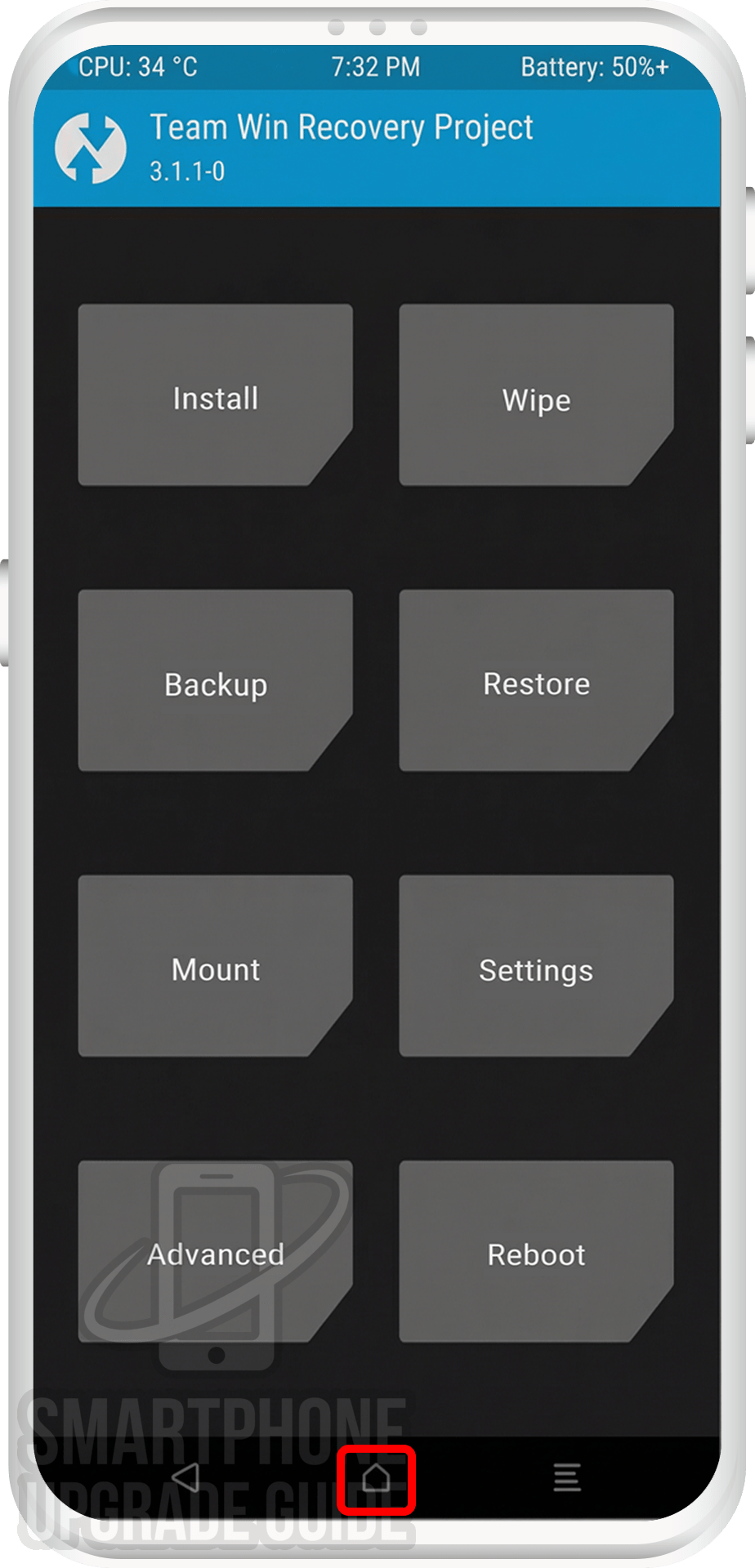
- 2Boot your Realme Q5 into TWRP custom recovery mode.
- 3Wipe system, vendor, data, cache, and dalvik cache partitions.
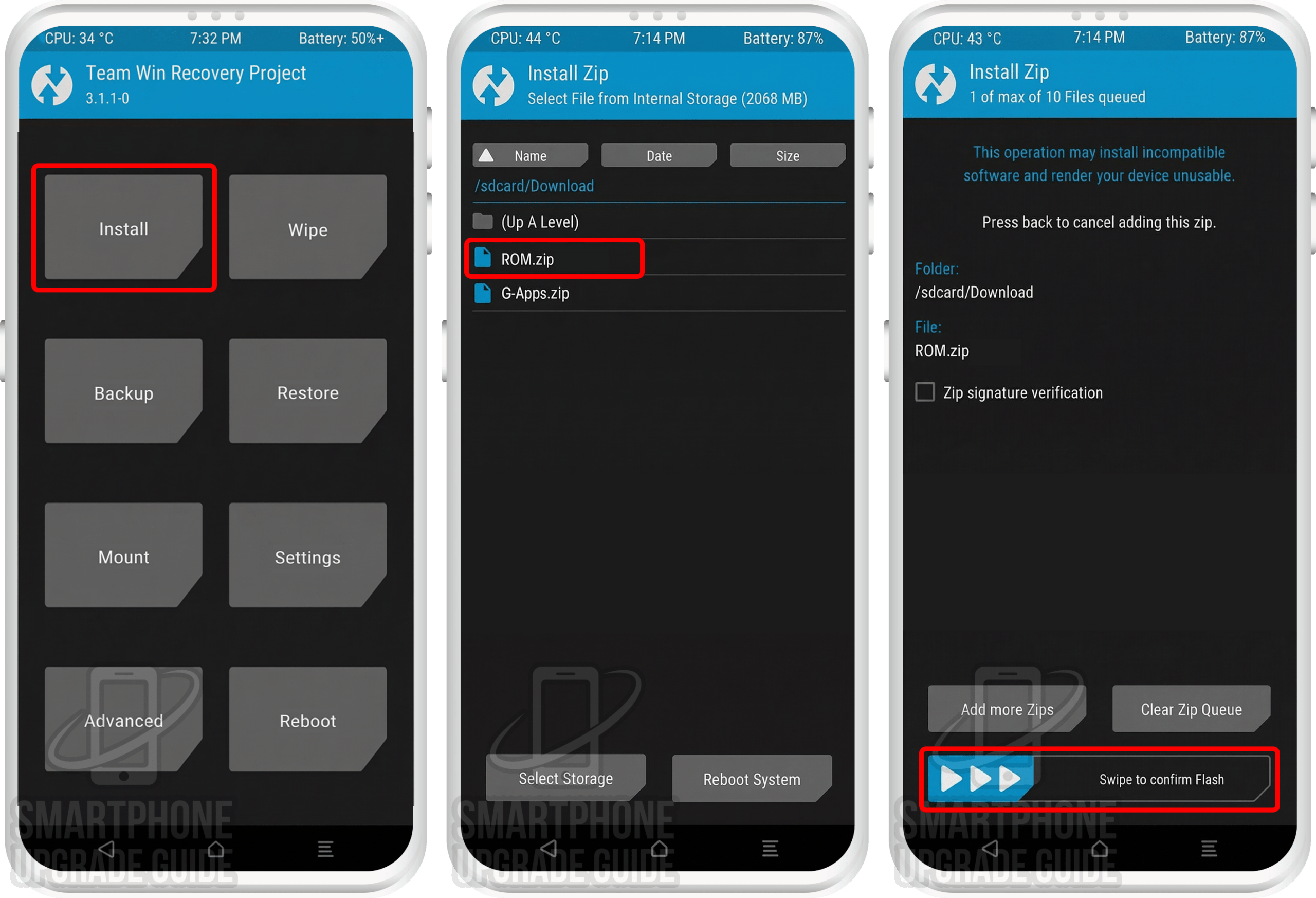
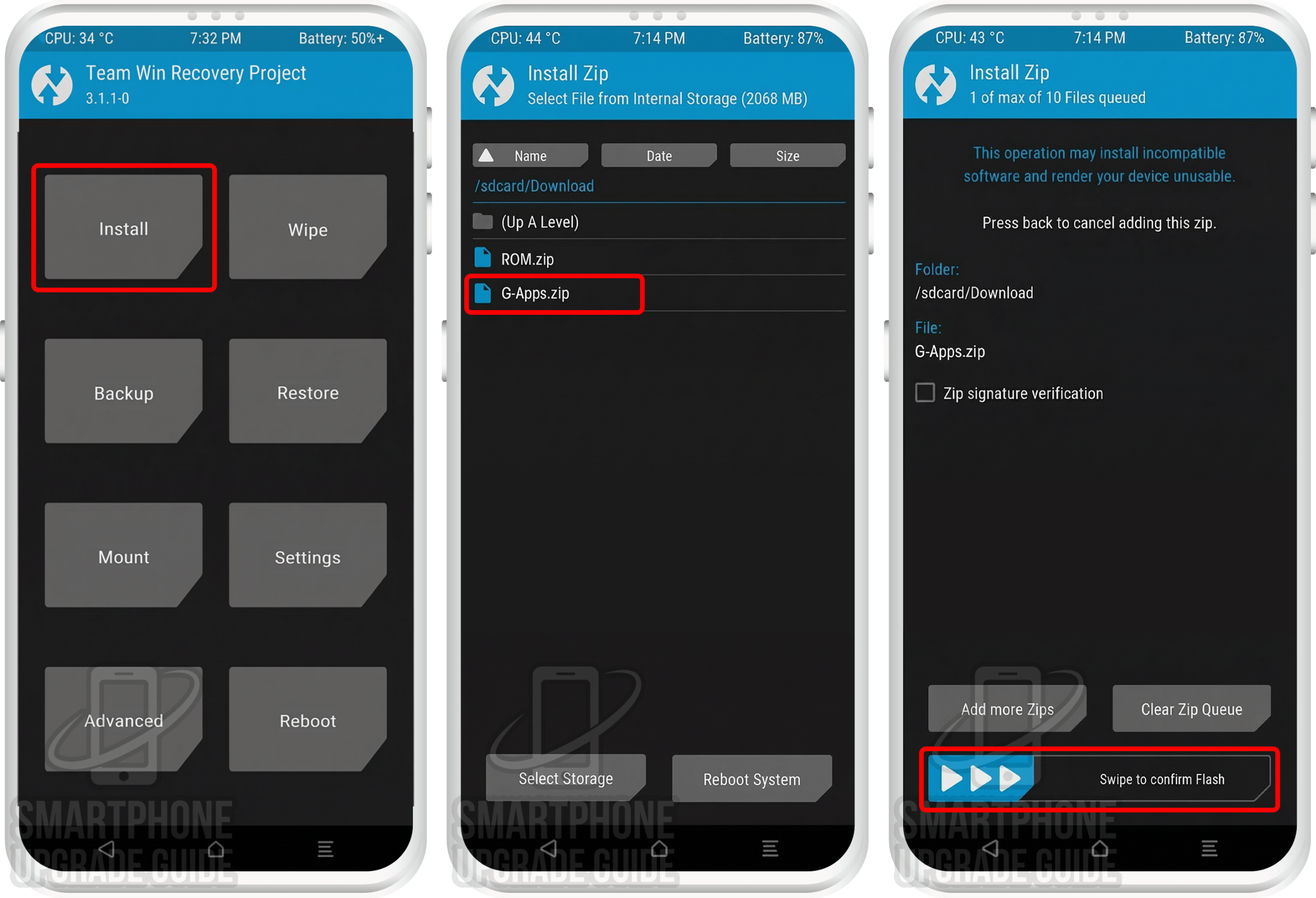
- 4Flash the Android 15 ROM zip followed by the GApps zip via TWRP Install.
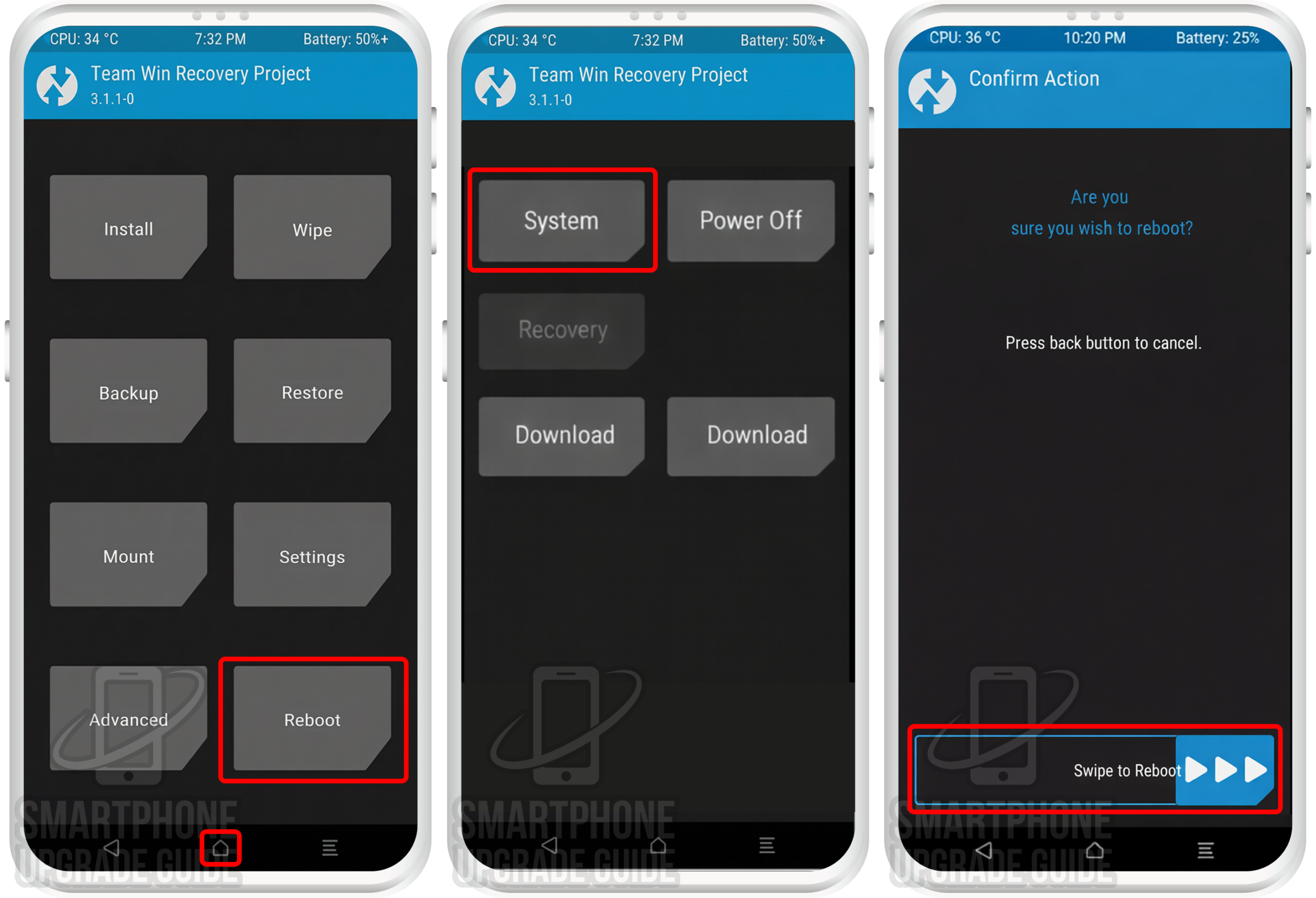
- 5Wipe cache, reboot, and enjoy Android 15 on your Realme Q5!
Step-by-Step: Install Android 15 on Realme Q5
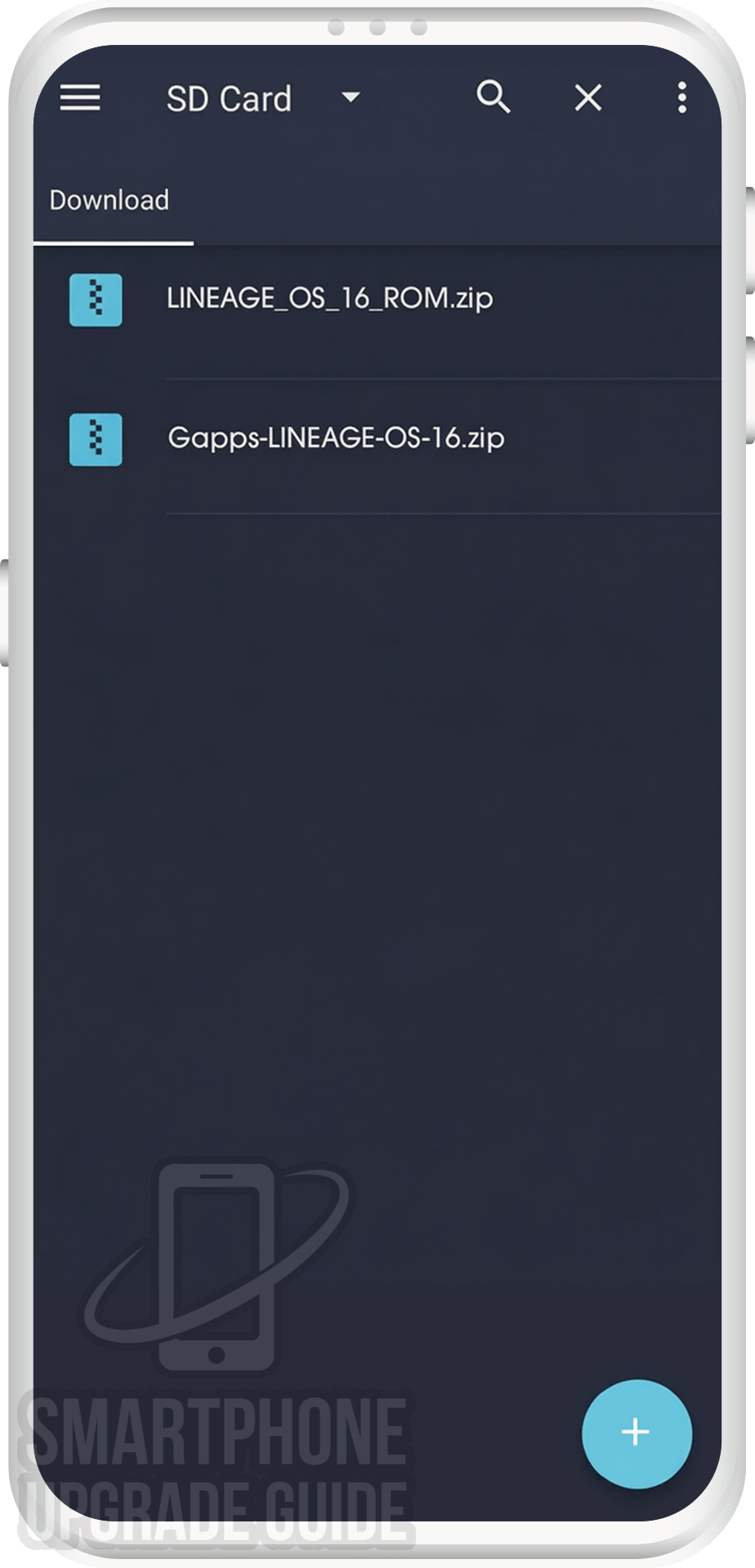
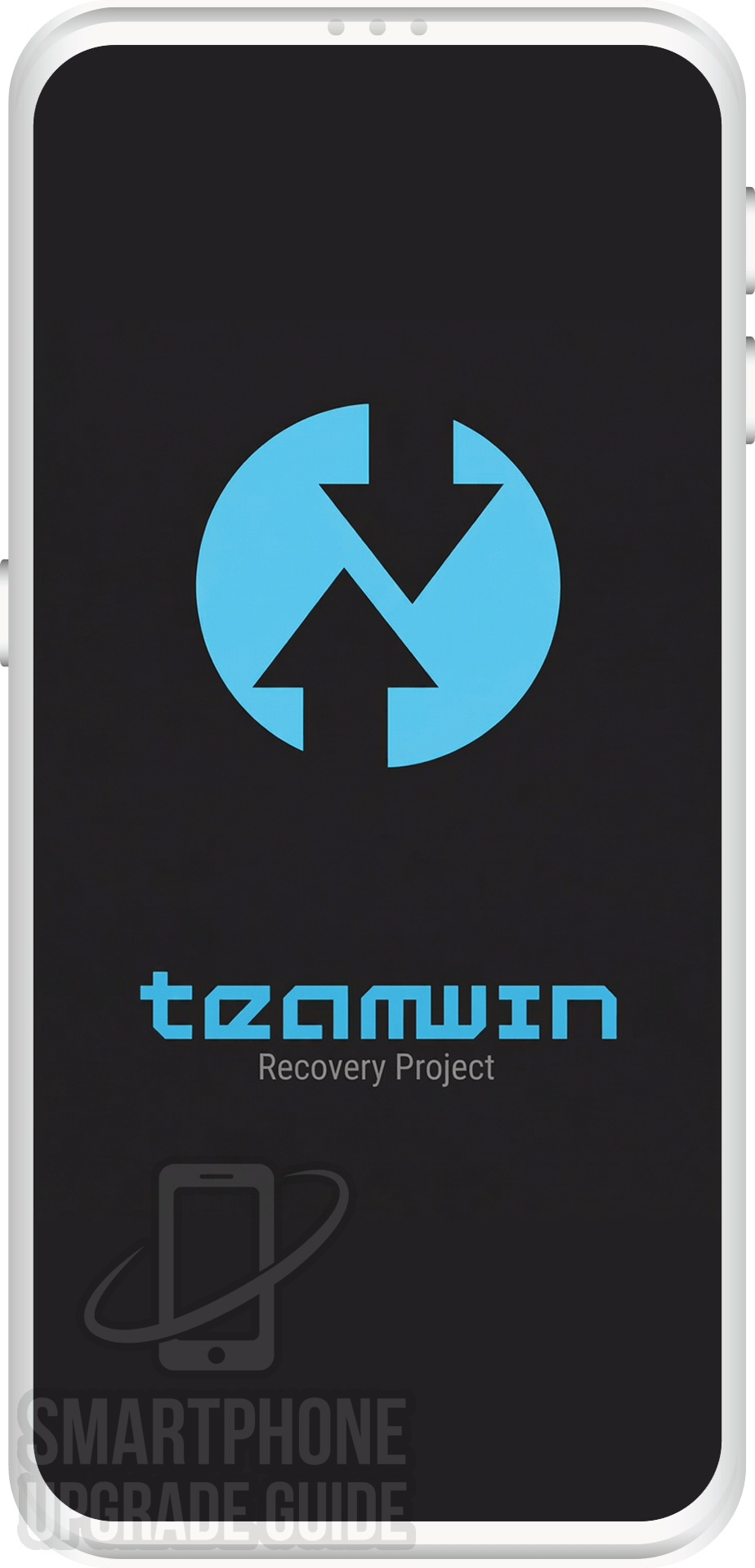
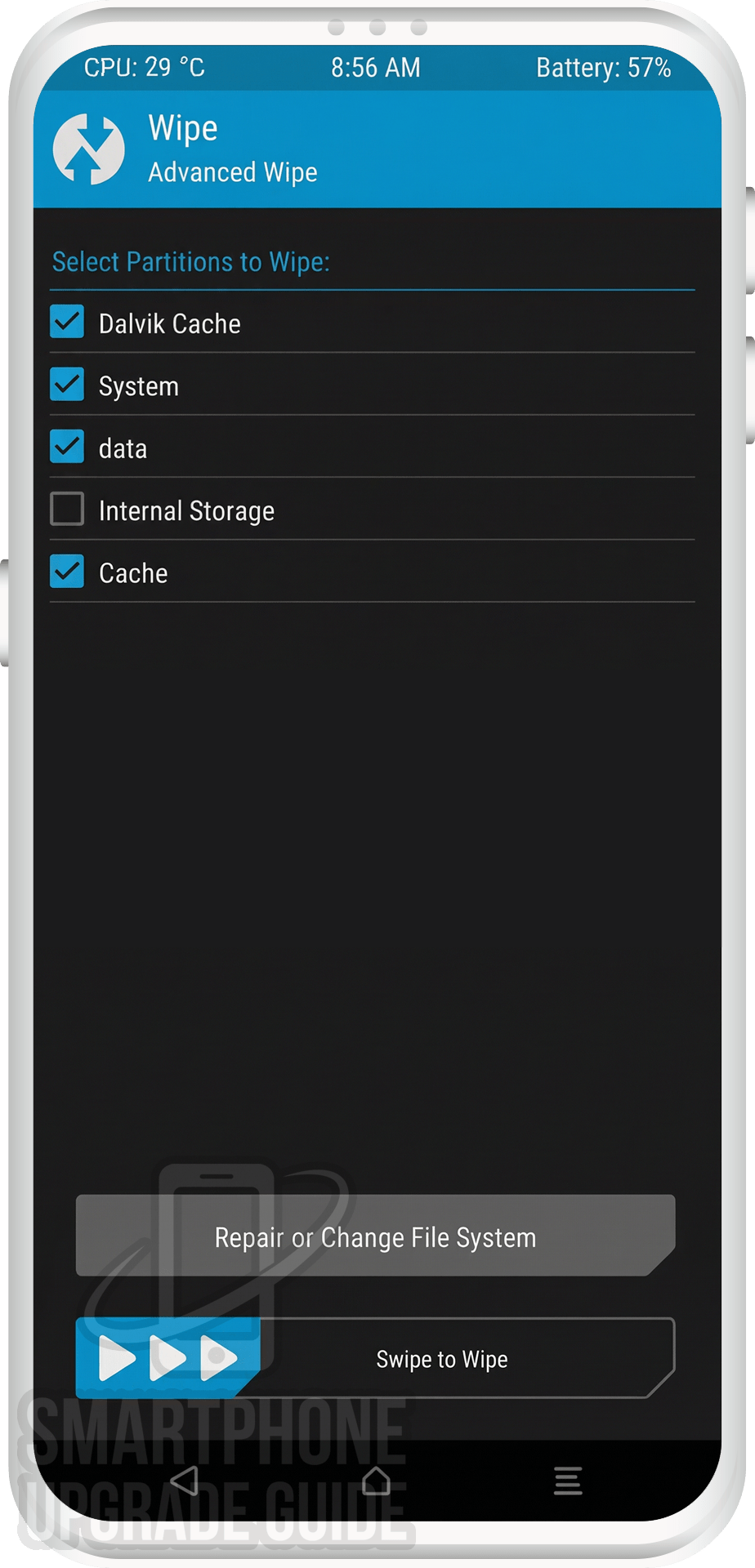
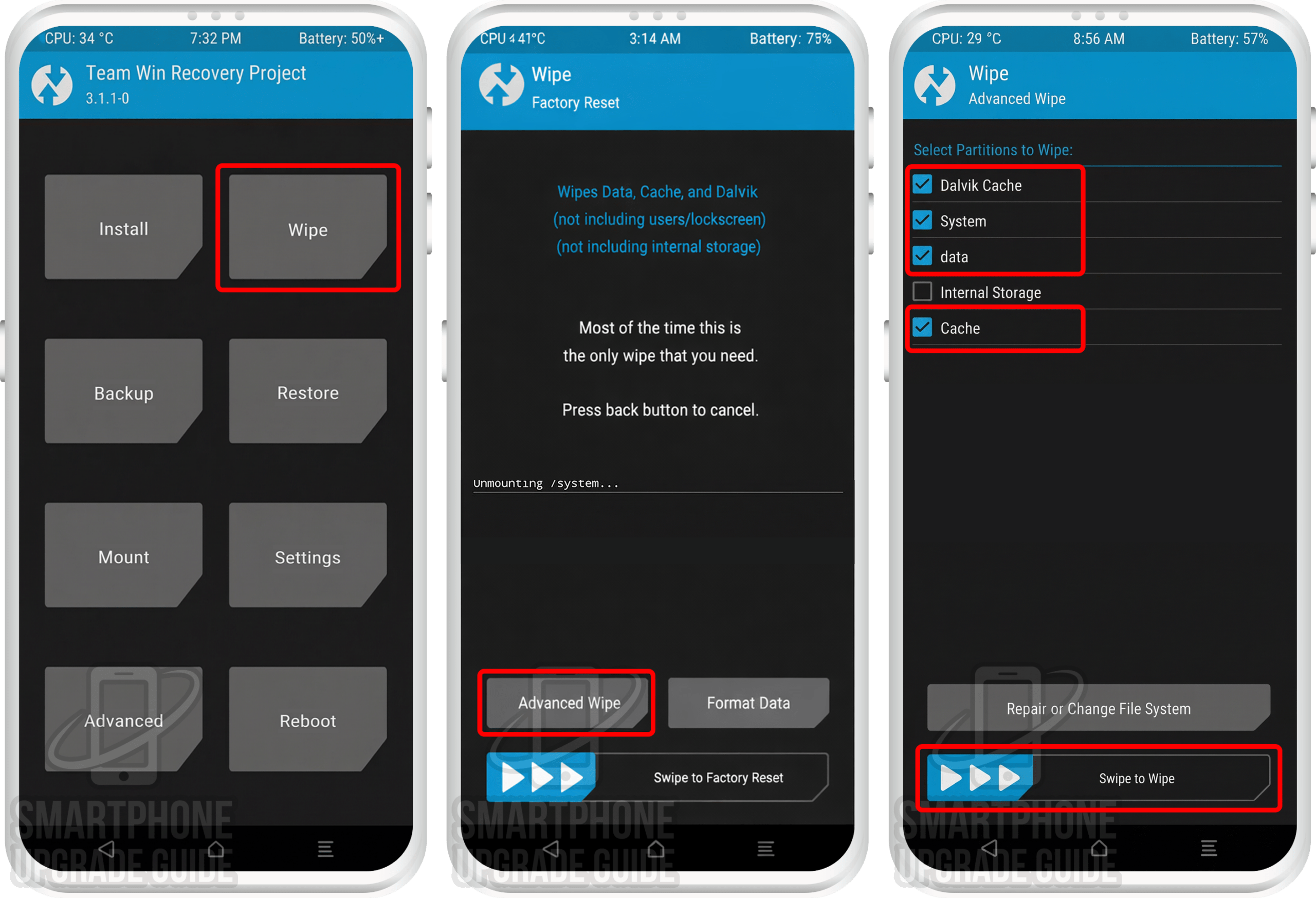
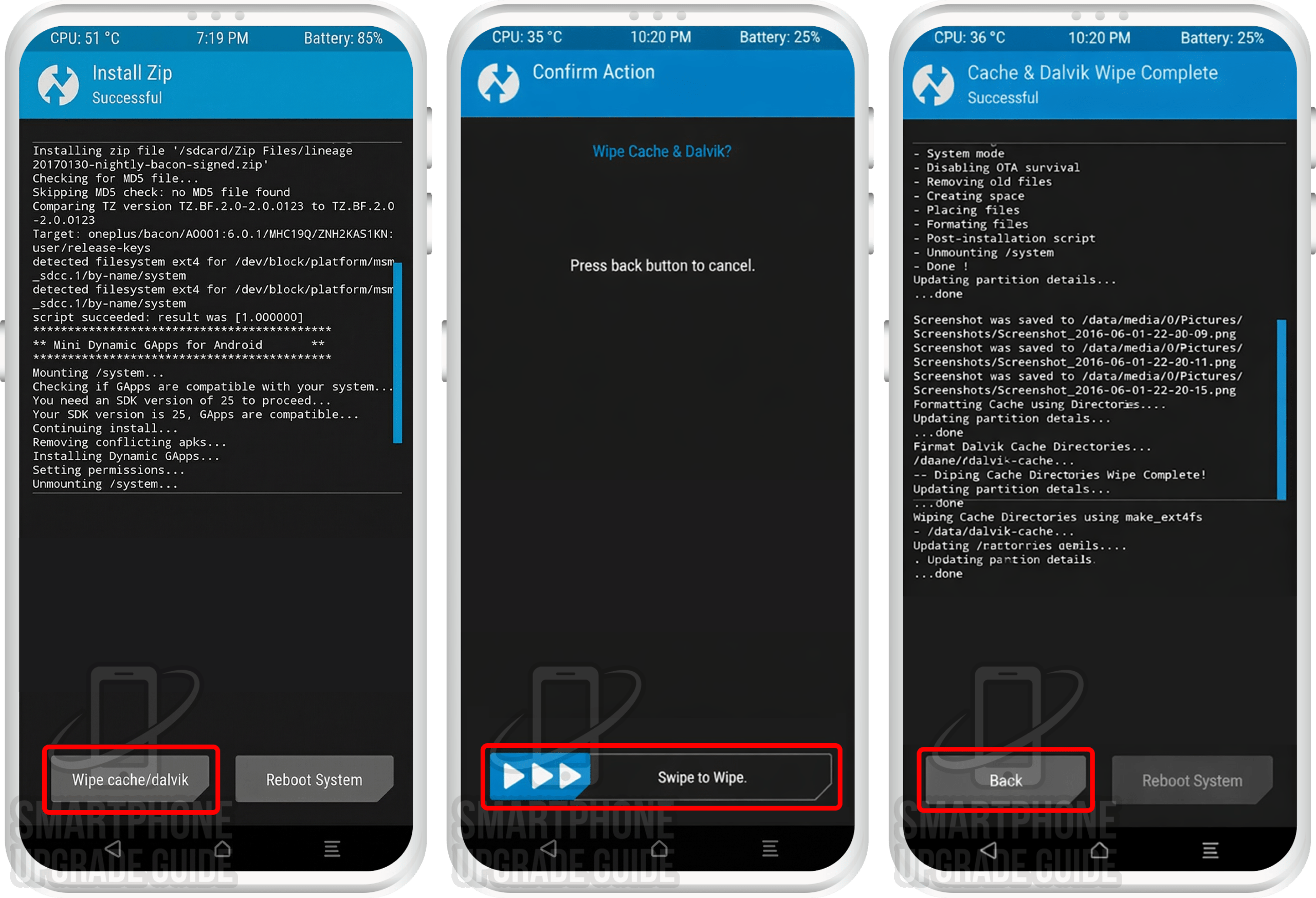
Android 15 Successfully Installed on Your Realme Q5!
Congratulations! You’ve successfully installed Android 15 (LineageOS 22) on your Realme Q5. Enjoy the latest Android features, improved performance, enhanced security, and a clean stock Android experience on your refreshed device!
What’s Working & Not Working on Android 15 (Realme Q5)
Based on the XDA Forum thread and community reports, here’s the current status of features on the LineageOS 22 (Android 15) ROM for the Realme Q5. Note: This may vary between builds, so always check the latest forum post.
Working
- ✅ Phone calls & SMS
- ✅ Wi-Fi & Hotspot
- ✅ Mobile data (4G LTE)
- ✅ Bluetooth & audio
- ✅ Camera (photo & video)
- ✅ GPS & location
- ✅ Fingerprint sensor
- ✅ NFC
Known Issues
- ⚠️ Minor camera quirks in some modes
- ⚠️ Some hardware features may vary by build
Always check the XDA Forum thread for the most up-to-date bug list for your specific build version.
Troubleshooting Common Issues
🔄 Stuck on Boot Animation (Bootloop)
If your Realme Q5 is stuck on the boot animation for more than 15 minutes, it may be bootlooping. Reboot into TWRP (Power + Vol Up), perform a full wipe (System, Data, Cache, Dalvik), and re-flash the ROM and GApps. Make sure you’re using compatible GApps for Android 15 arm64.
❌ “Error 7” or “Zip Verification Failed”
This usually means you’re flashing a ROM not built for your device. Double-check that the ROM zip is specifically for the Realme Q5. Also ensure your TWRP version is up-to-date and compatible with Android 15 ROMs.
📱 No Mobile Data or Signal After Installation
You may need to flash the correct firmware (baseband/modem) before installing the ROM. Check the XDA Forum thread for the recommended firmware version for your build of LineageOS 22.
🔙 How to Restore Back to Stock ROM
If you want to go back to the stock ROM: (1) restore your Nandroid Backup via TWRP → Restore, or (2) download the official stock ROM from the manufacturer and flash it using the appropriate flash tool on your PC. This will completely restore your Realme Q5 to factory stock condition.
Frequently Asked Questions — Android 15 on Realme Q5
Here are answers to the most commonly asked questions about installing and using Android 15 (LineageOS 22) on the Realme Q5:
Is the Android 15 ROM for Realme Q5 stable enough for daily use?
The LineageOS 22 (Android 15) ROM for the Realme Q5 is an unofficial build. Core features — including phone calls, Wi-Fi, mobile data, camera, Bluetooth, GPS, and the fingerprint scanner — work well in most builds. Some minor bugs may exist depending on the build version. We recommend checking the XDA Forum thread for the latest known issues before installing it as your daily driver.
Will installing a custom ROM void my Realme Q5 warranty?
Yes, unlocking the bootloader and installing a custom ROM voids the manufacturer warranty. However, since the Realme Q5 was released in September 2019, virtually all units are well past their warranty period, so this shouldn’t be a concern for most users.
Can I go back to stock ROM after installing Android 15 on my Realme Q5?
Absolutely. You have two options: (1) Restore your Nandroid Backup through TWRP Recovery to return to your exact previous ROM state, or (2) Download the official stock ROM from the manufacturer’s website and flash it using the appropriate flash tool to perform a clean restore to stock firmware.
Which GApps package should I use with Android 15 on Realme Q5?
You can choose from four popular options: LiteGApps (recommended for minimal footprint), NikGApps (offers granular control over which Google apps to install), MindTheGApps (balanced package), or BiTGapps (lightweight alternative). All must be the ARM64 variant for Android 15 (API 35). Read our complete GApps compatibility guide to choose the best option for your needs.
Do I need an unlocked bootloader to install Android 15 on Realme Q5?
Yes, an unlocked bootloader is a mandatory prerequisite. Without it, you cannot install TWRP Recovery or flash any custom ROM. Use the manufacturer’s official unlock tool to request a bootloader unlock. The process typically involves a waiting period before the unlock is approved.
Does the Android 15 ROM support the Realme Q5’s fingerprint scanner?
Yes, in most LineageOS 22 builds for the Realme Q5, the fingerprint scanner works correctly. However, functionality can occasionally vary between different build versions. If the fingerprint scanner isn’t working after installation, try updating to the latest build or check the XDA Forum for any required patches.
How do I update the Android 15 ROM on my Realme Q5 after installation?
To update to a newer build of LineageOS 22: Download the latest ROM zip from the LineageOS download page, transfer it to your device, reboot into TWRP, and flash the new ROM zip over the existing installation (this is called a “dirty flash”). Then wipe cache/dalvik and reboot. A full data wipe is usually not needed for minor updates, but always check the XDA thread for update-specific instructions.
Is the Xiaomi Mi CC9 the same as the Realme Q5 for custom ROM installation?
Yes, the Xiaomi Mi CC9 and Realme Q5 are the same hardware device sold under different names in different regions. The Mi CC9 was the Chinese variant, while the Realme Q5 was the global/international variant. Both use the exact same ROM, TWRP recovery, firmware, and kernel files. You can follow this same guide for either device.
Have questions or ran into issues while installing Android 15 on your Realme Q5? Drop a comment below and we’ll help you out! You can also get support from the XDA Forum community where the ROM developer and experienced users actively respond to questions.