
[the_ad id=”193″]
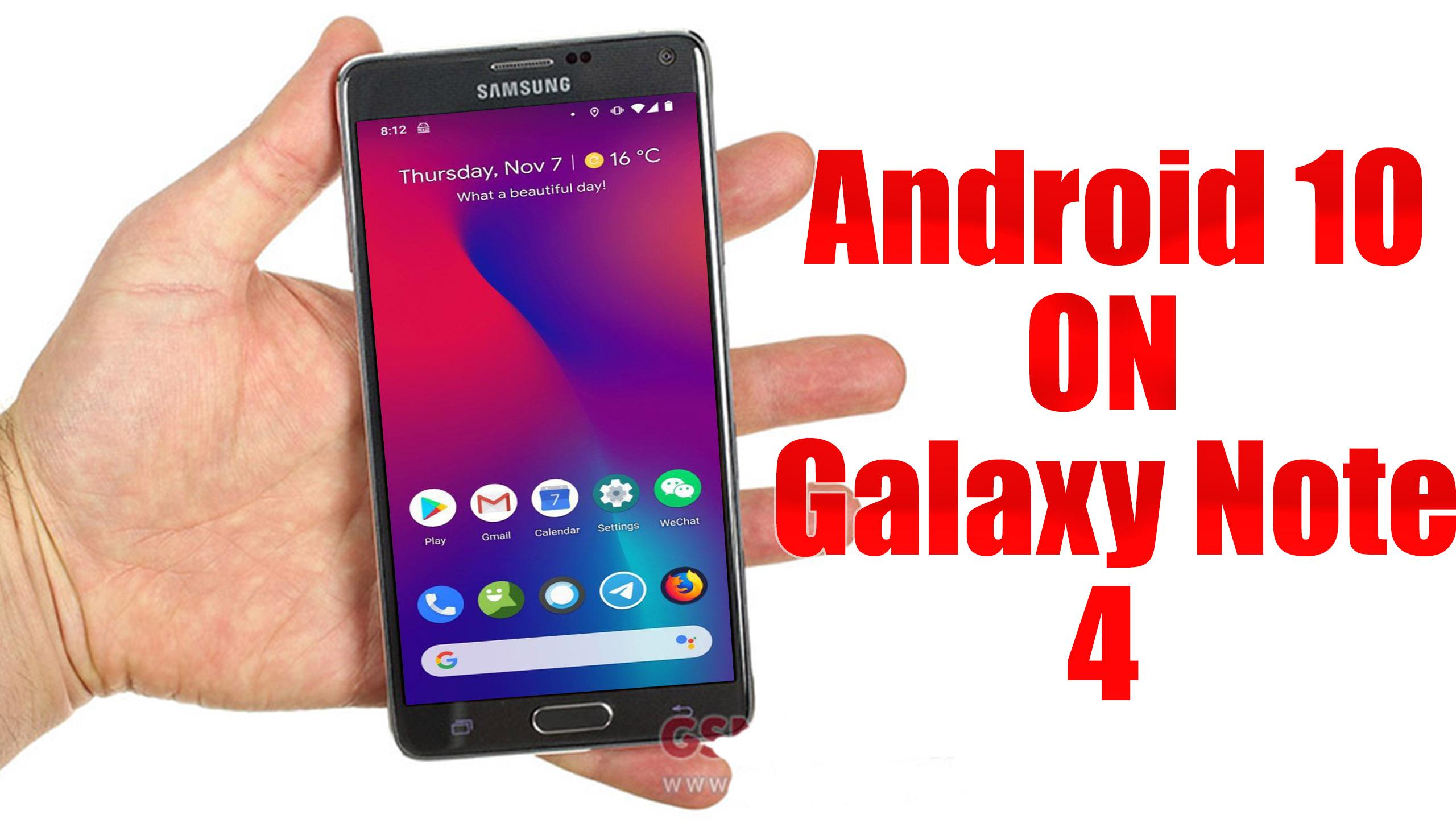
To install Lineage OS 17.1 on your Galaxy Note 4, you need to unlock bootloader and running latest TWRP Recovery. If you are on the old version, you will see error 7 warning text while installing the custom ROM on Galaxy Note 4 device.
Google has officially unveiled the latest version of Android OS called Android 10. The update is already going live for Pixel series devices. It brings plenty of new features to the device system like system UI, new gesture navigation, improved privacy and location control. The update also offers enhanced app permissions, foldable display support, security features, system-wide dark mode, etc.
The Android 10 also offers built-in call screening, multi-camera API, smart replies in the notification panel, 5G support, improved call quality, bubble feature, live caption, and more. While the latest version also improves battery life, Focus mode which is similar to the Do Not Disturb mode, etc. Apart from that Android 10 also features 65 new emojis. It also comes with direct audio streaming support to hearing aid devices.
[the_ad id=”6713″]
Lineage OS 17: Android 10 Build
Lineage OS is an open-source and free operating system which is based on the Android platform. It is the successor to the custom MOD, the CyanogenMod, which shut down its operation in December 2016. However, Cyanogen. Inc retained the rights to the custom MOD and gave a rebranding to it as Lineage OS.
Well, LineageOS 17 will be based on the latest Android 10 and it comes with all the Android 10 features and Lineage customization options which allows users to be more advanced. Now you can enjoy Lineage OS 17.1 on Nexus 6P by flashing this custom ROM.
Important Notes!
This ROM will only work on this device, Don’t try this on any other device.
Follow the steps correctly otherwise you may brick your device. We are not responsible for any damage to your phone.
It will erase all your data, so we advise you first to take a complete backup of your phone and then proceed.
Ensure that your phone has at least 50-60% charged to prevent the accidental shutdown in-between the process.[the_ad id=”6713″]
* I’m not responsible for bricked devices
Requirements!
You must have TWRP Recovery Installed on your device. (Learn here: How to install)
XDA Development Forum: Here!
(you can check here more information about ROM what is working and what’s not working)
▼DOWNLOAD FILES
LINEAGE OS 17.1 ROM(TRLTE)
LINEAGE OS 17.1 ROM(TRLTEDUOS)
LINEAGE OS 17.1 ROM(TBLTE)
LINEAGE-OS 17.1 GAPPS
Check-out which G-App is compatible for your device from Here!
Instructions to Install
1. First Download & Install a Custom Recovery on your device (TWRP is recommended), If you already have installed then skip this step.
[the_ad id=”193″]
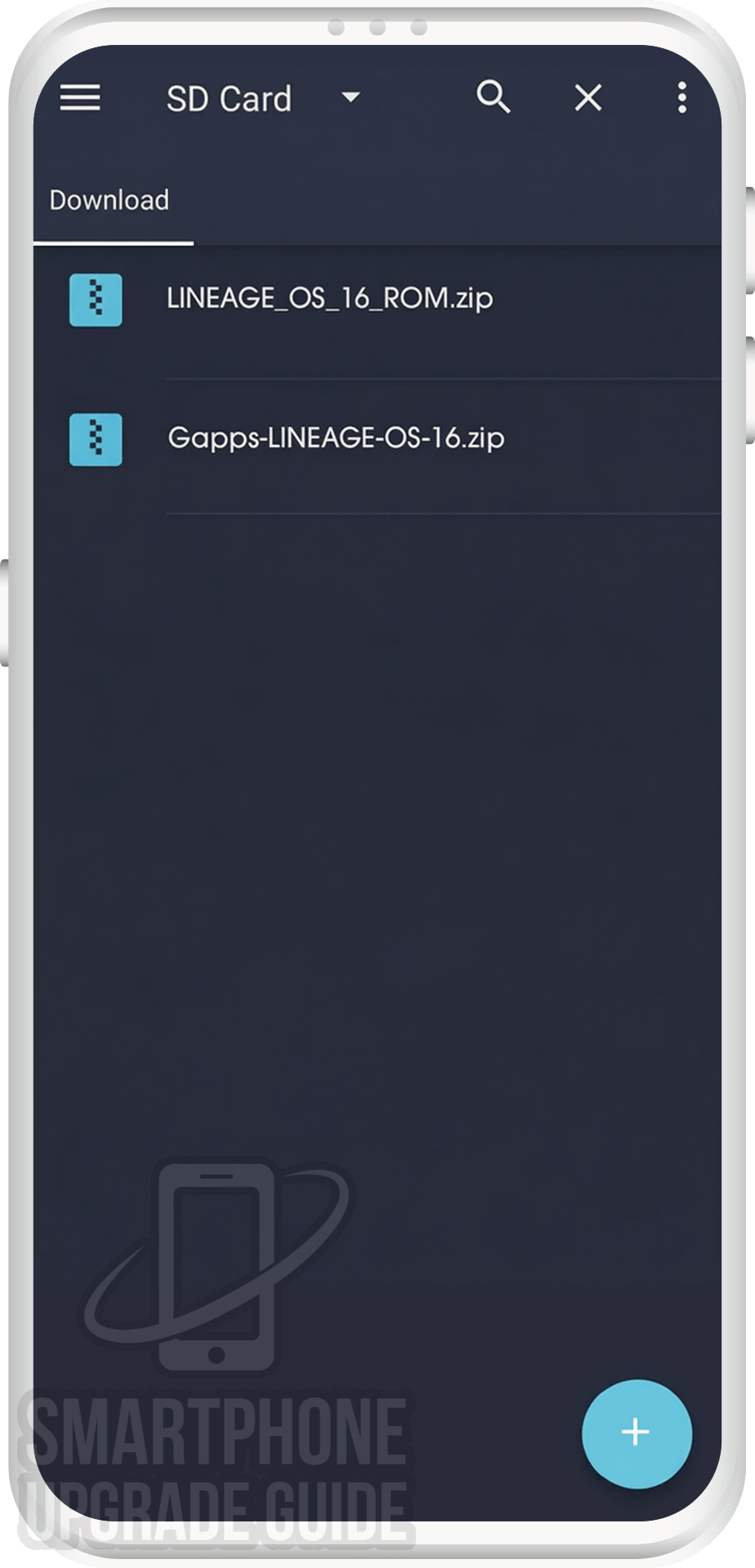
2. Download ROM & Gapps .zip file and save it on your device’s Internal storage or SD Card.
[the_ad id=”6714″]
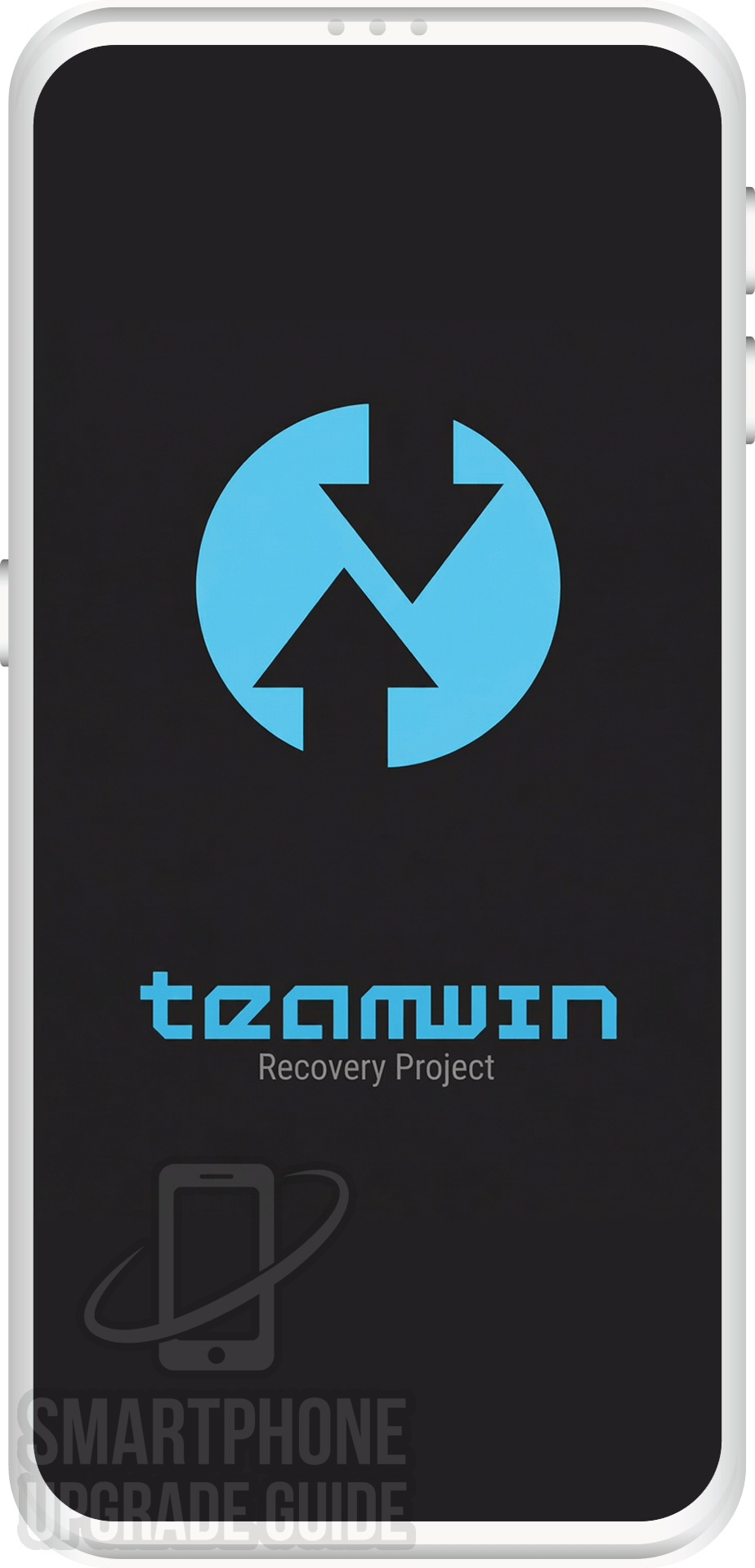
3. Now Boot your device into TWRP Recovery Mode. (if you don’t know how to boot your device into twrp recovery then you can search it on Google)
[the_ad id=”193″]
4. Now in TWRP create a Nandroid Backup of your device for safer side. If anything goes wrong, you can restore back to your older ROM. (How to Take Nandroid Backup)
[the_ad id=”6714″]
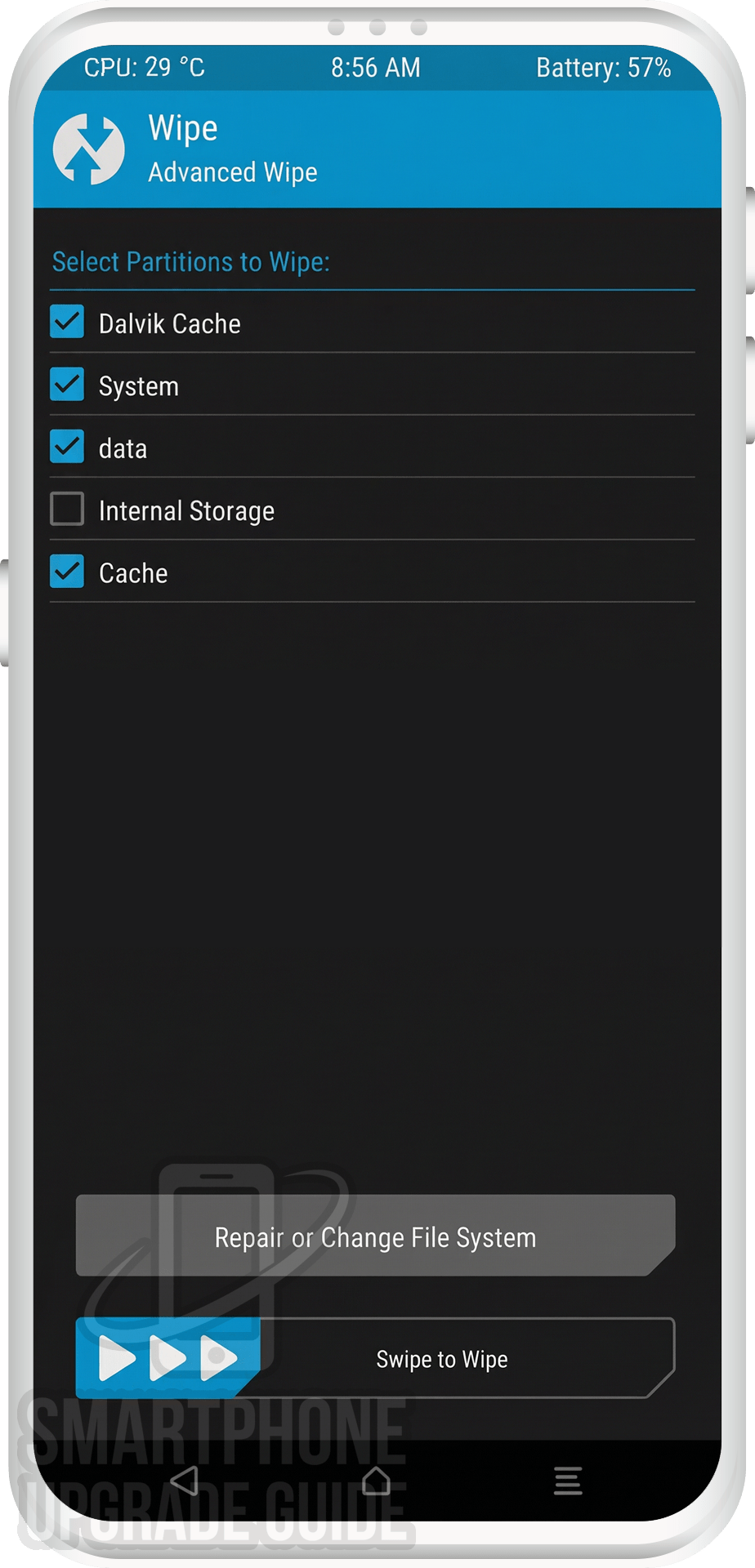
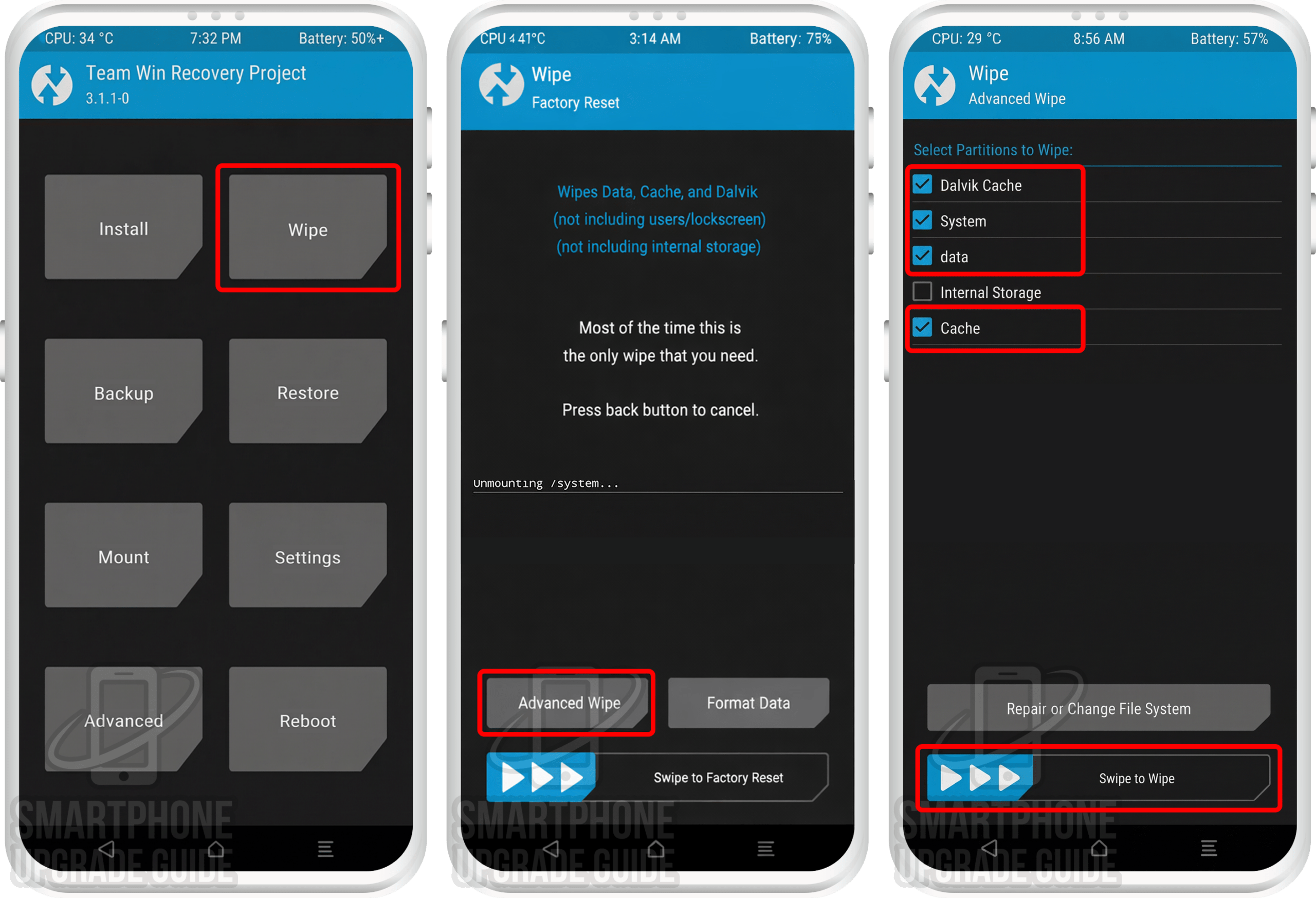
5. Now do a Factory Reset of your device, Goto Wipe > Advanced Wipe > Select Cache, Dalvik Cache, System, and Data. Then Swipe to Wipe.
[the_ad id=”193″]
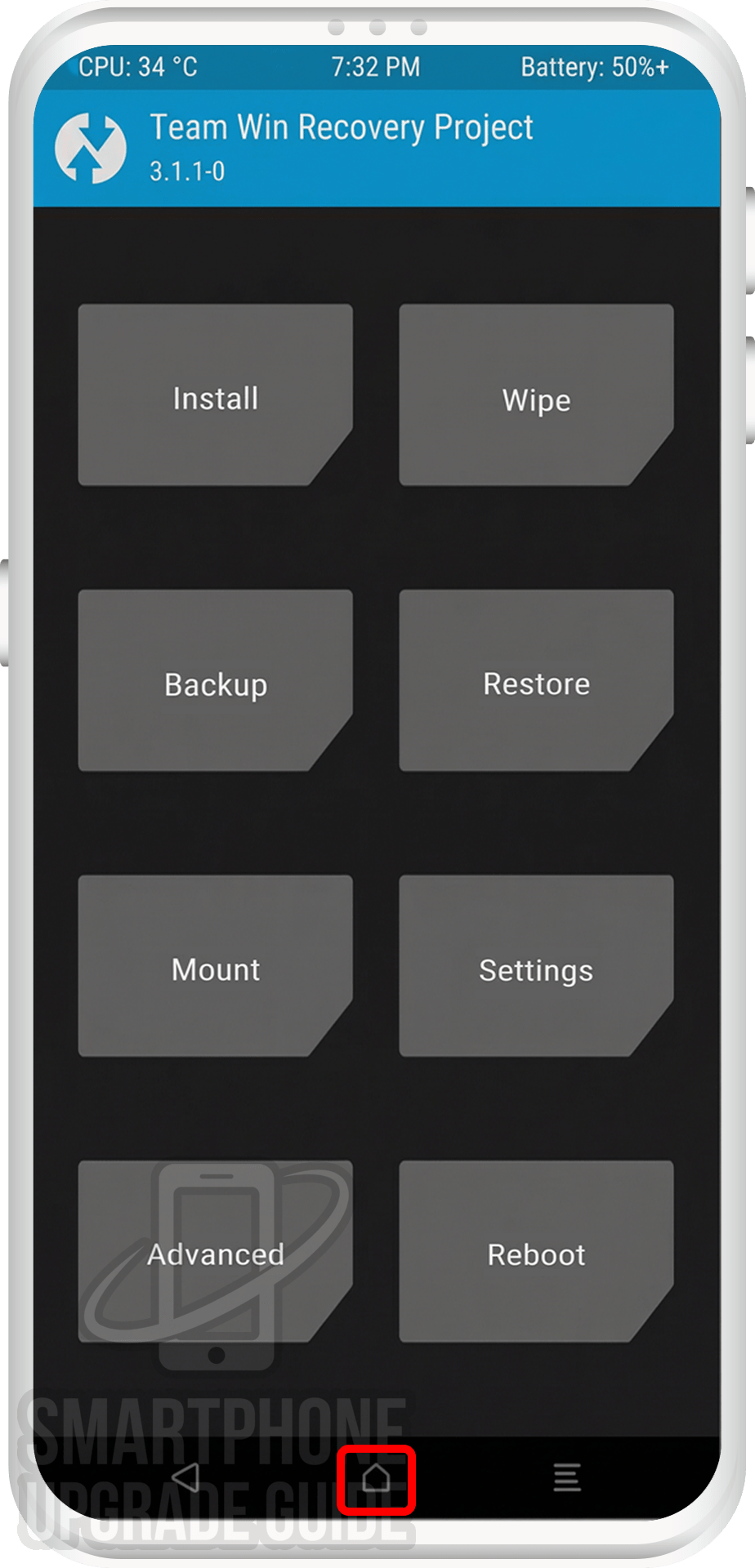
6. Now go back to TWRP Main Menu by pressing the Center navigation button.
[the_ad id=”6714″]
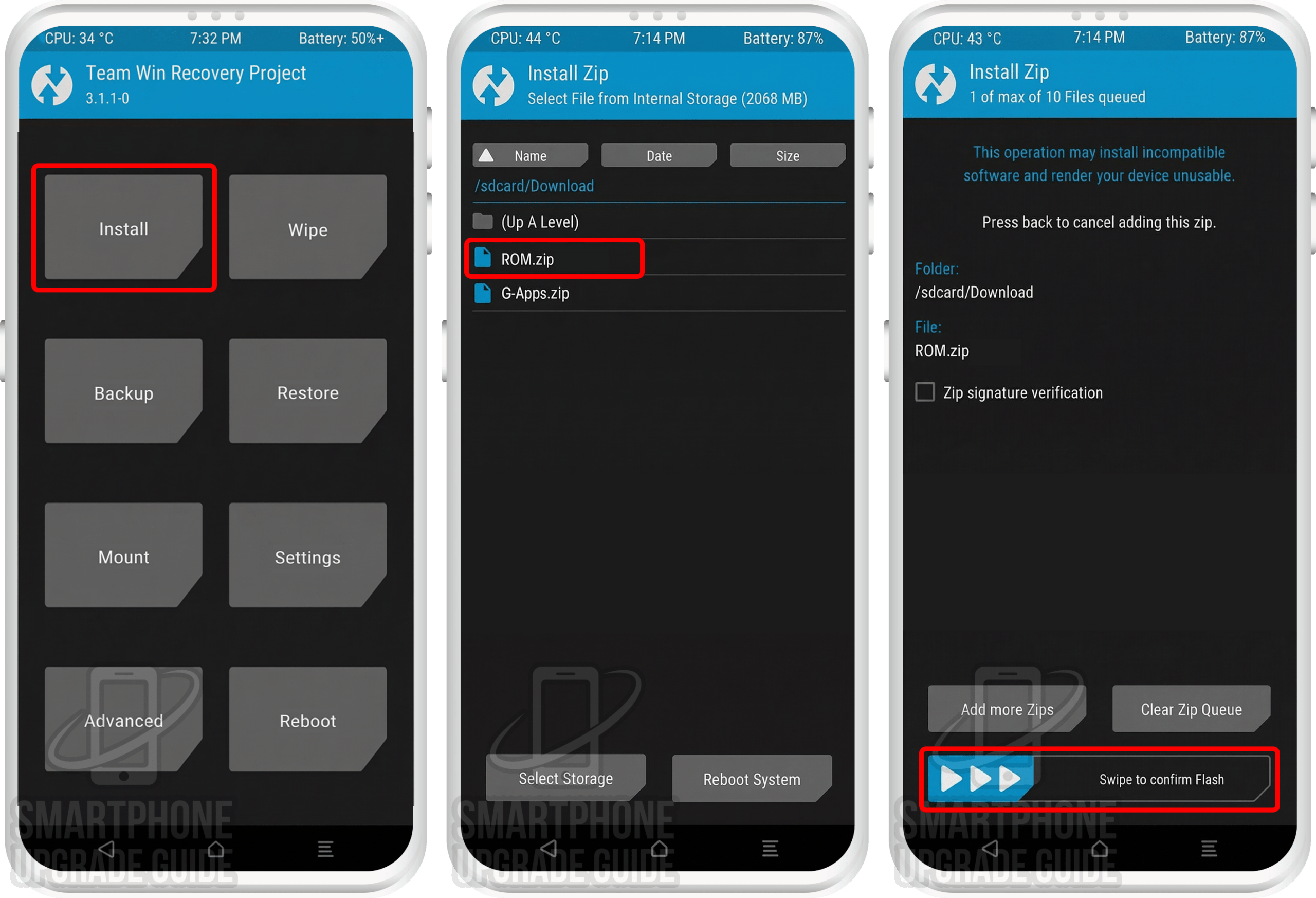
7. Now Select Install, Locate the ROM zip file and Swipe to Confirm Flash.
[the_ad id=”193″]
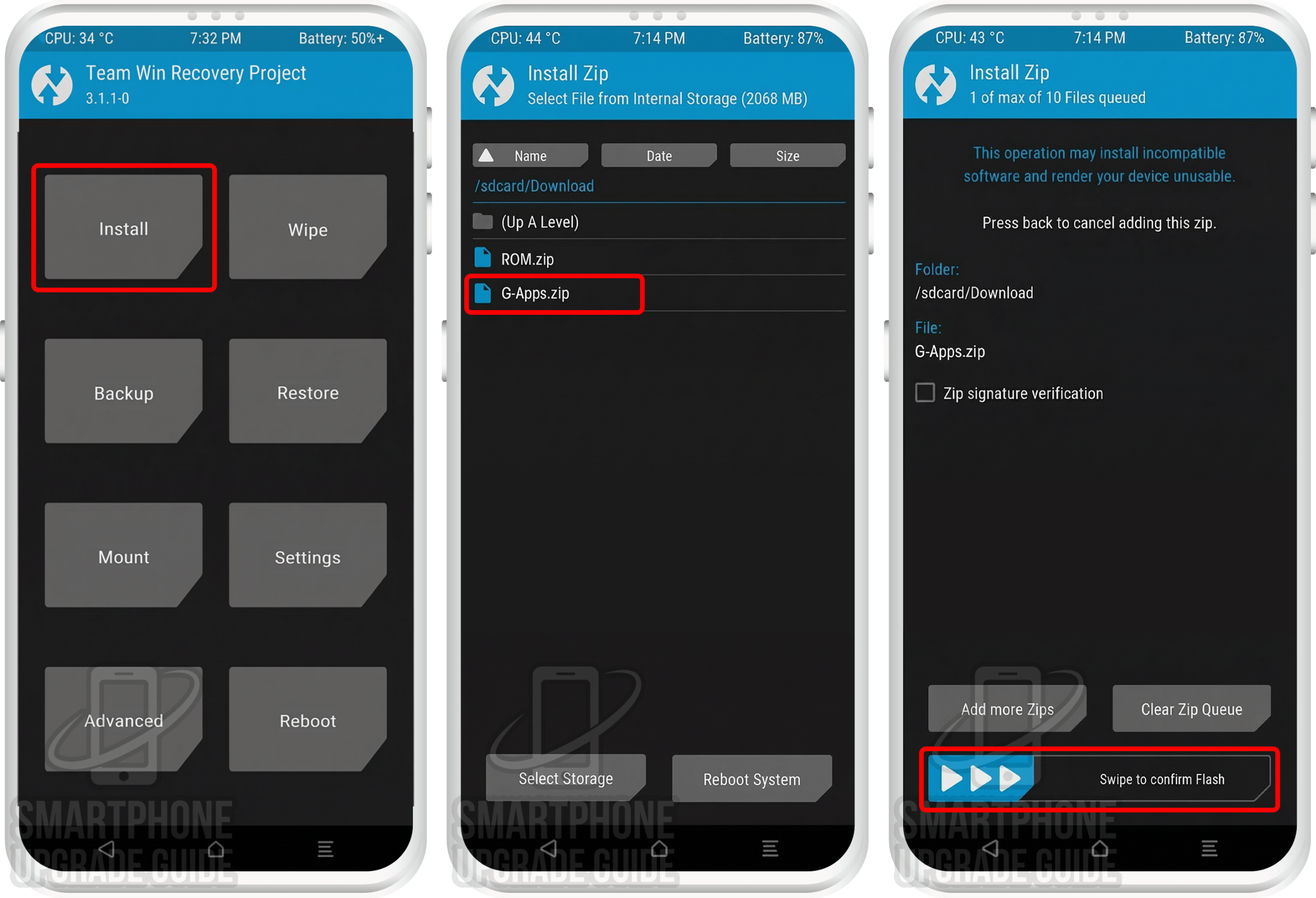
8. After the flashing completes, Flash the Gapps in the manner.
[the_ad id=”6714″]
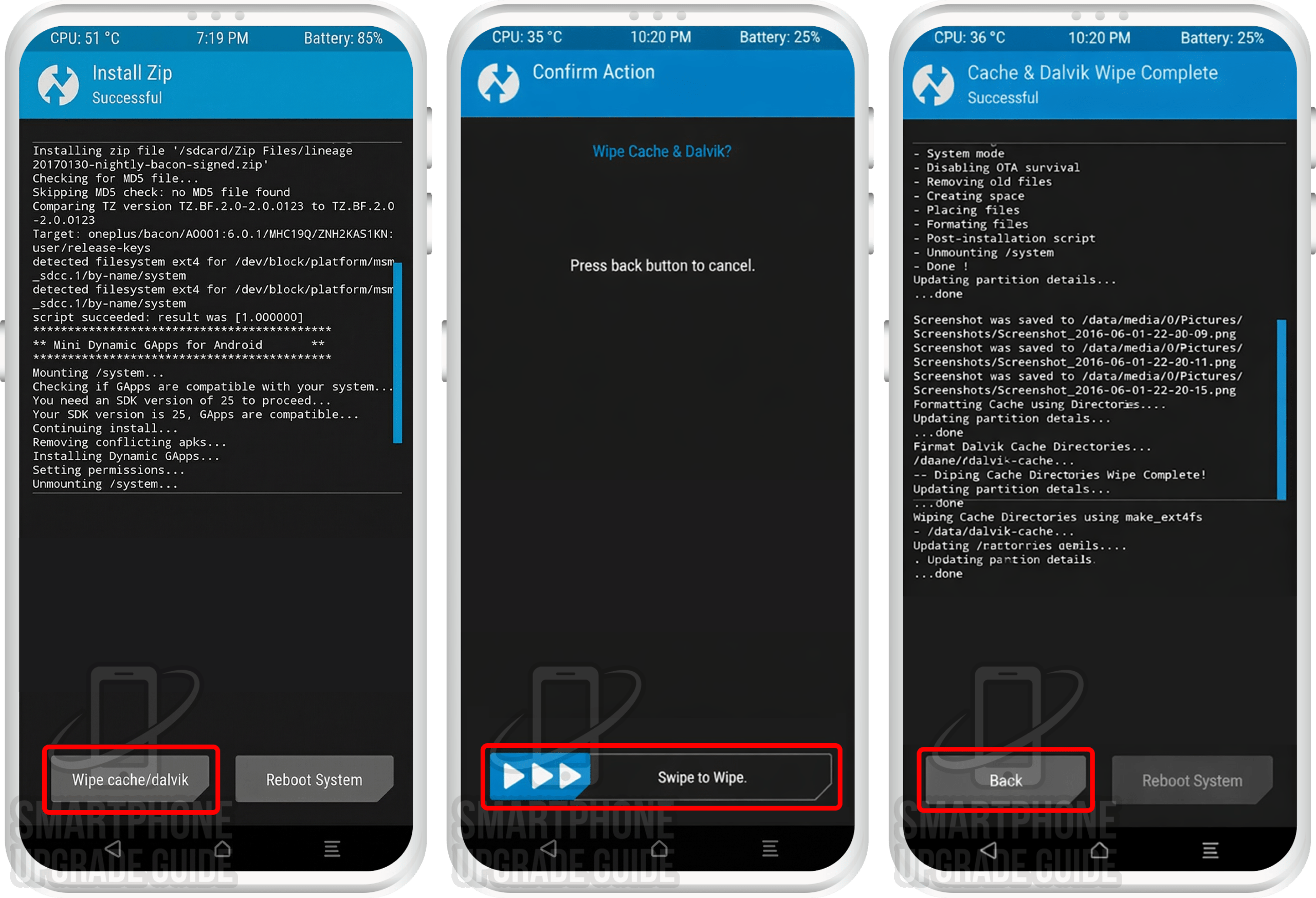
9. After Gapps flashing completes, Select Wipe cache/dalvik from the bottom left side of the screen, & Swipe to Wipe.
[the_ad id=”193″]
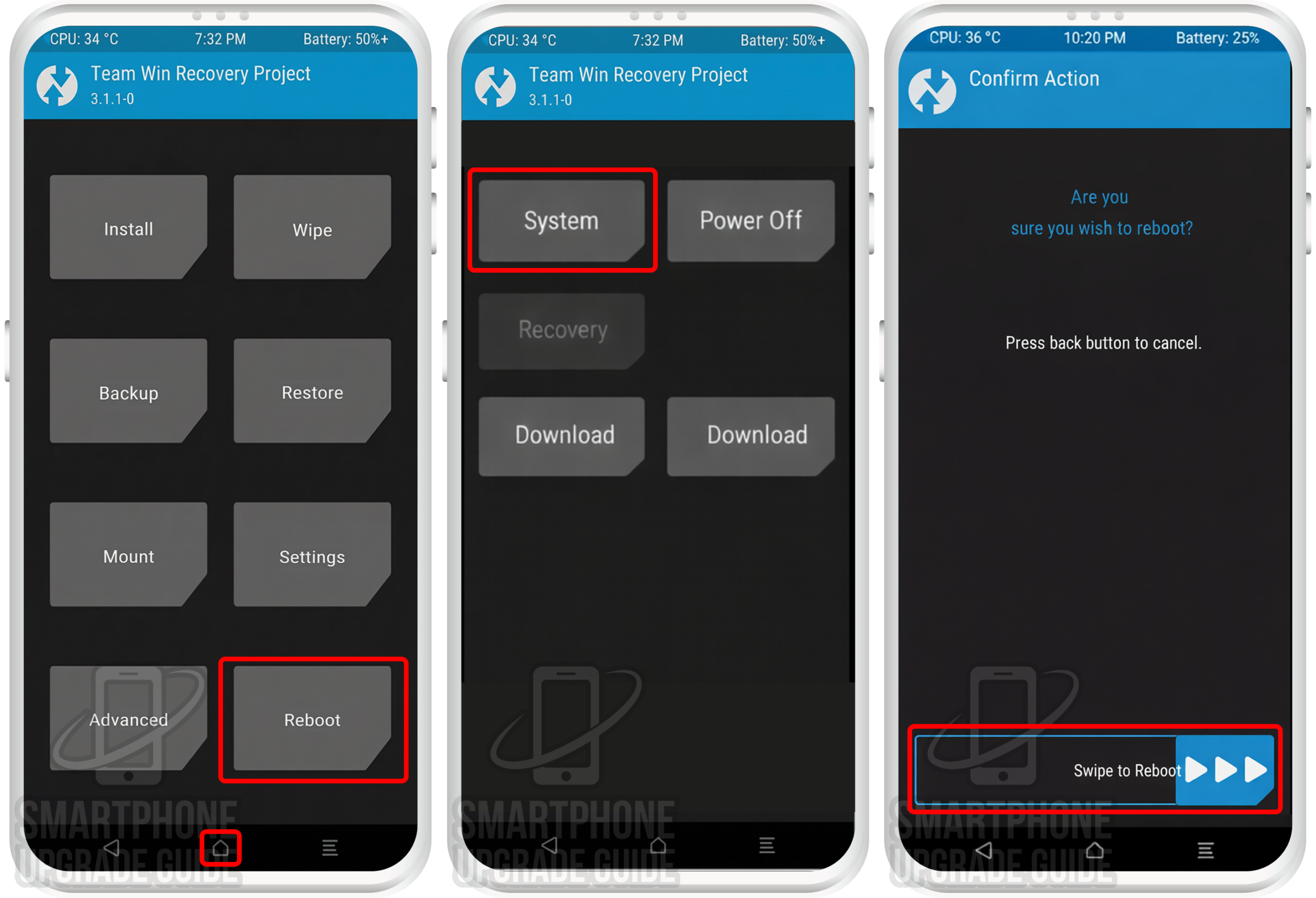
10. After wipe completes, Click on Reboot System.
[the_ad id=”6714″]
That’s it Now you have successfully installed the latest Android on your device, the first boot will take some time so please don’t panic!
If you have any questions regarding the ROM or the installation process, use the comments section below to reach us or contact to XDA forum members from the link above.