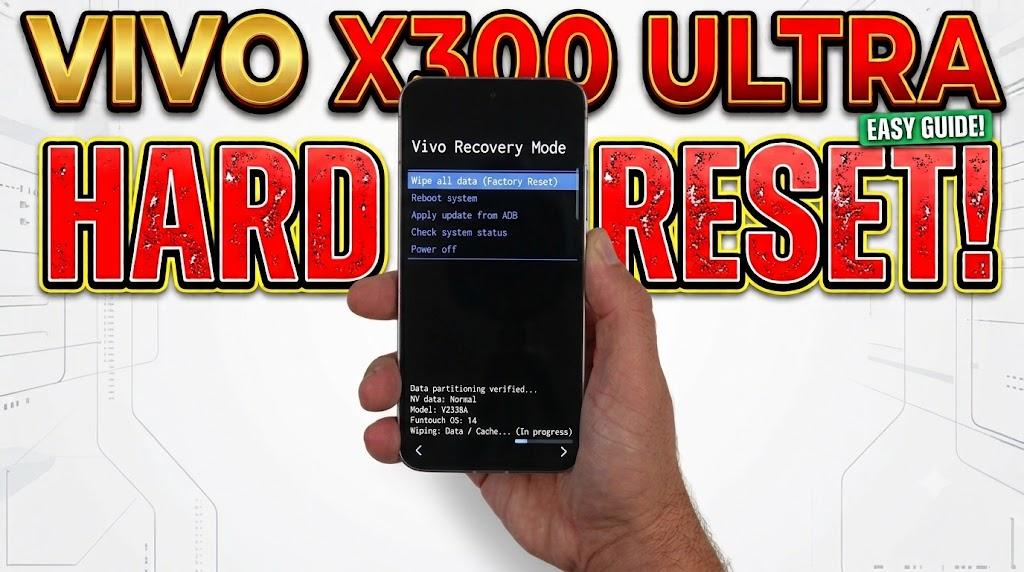
Searching for a clear, step-by-step guide to factory reset your Vivo X300 Ultra? This in-depth tutorial will show you exactly how to hard reset, wipe all personal data, and bypass the screen lock on the Vivo X300 Ultra utilizing the physical button combination via Android 16 Recovery Mode—completely eliminating the need for passwords, a computer, or ADB software. Whether your smartphone is experiencing freezing, boot loops, system lag, or you are simply locked out, this procedure will effortlessly restore your device to its original factory state in mere minutes.
Performing this hardware-level reset is the most effective way to resolve stubborn software glitches, continuous boot loops, and sluggish performance. It works perfectly even if your touchscreen has stopped responding or if you happen to forget your lock screen password, PIN, or pattern. Furthermore, a hard reset is a crucial preliminary step before handing down, selling, or trading in your Vivo X300 Ultra, guaranteeing that all your sensitive information, downloaded files, and synced accounts are irreversibly erased.
[the_ad id=”6713″]
Before You Begin
⚠️ Important: A factory reset permanently erases all data from your VIVO X300 ULTRA, including photos, apps, contacts, and accounts. Make sure to back up everything before proceeding.
ℹ️ Good to know: After a factory reset, you will need your Google account credentials to set up the device again due to Factory Reset Protection (FRP).
Hard Reset VIVO X300 ULTRA — Step-by-Step Instructions
STEP 1 OF 8
Step 1.
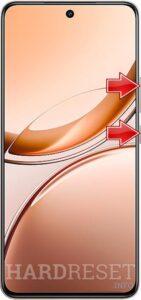
Press power button plus volume up button and turn off your smartphone.
STEP 2 OF 8
Step 2.
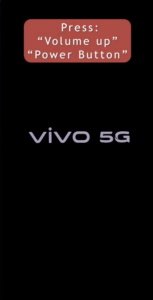
after device turn off, Press and hold the power button plus the volume up button when you see the Vivo logo release both buttons.
STEP 3 OF 8
Step 3.
use volume down button and select recovery mode by pressing power button.
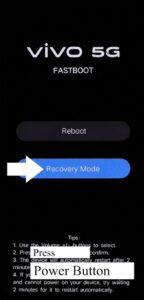
STEP 4 OF 8
Step 4.
now use volume down button and select wipe all data by pressing power button.
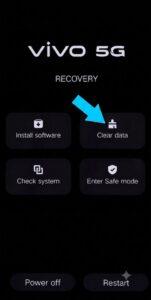

STEP 5 OF 8
Step 5.
tap on return option.

STEP 6 OF 8
Step 6.
now tap on arrow icon.

STEP 7 OF 8
Step 7.
now tap on restart button, and then ok.
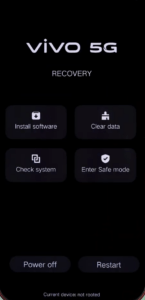
STEP 8 OF 8
Step 8.
hard reset is done.
✅ Factory reset complete! Your VIVO X300 ULTRA has been restored to its original factory state. All personal data, apps, and accounts have been erased.
[the_ad id=”6712″]
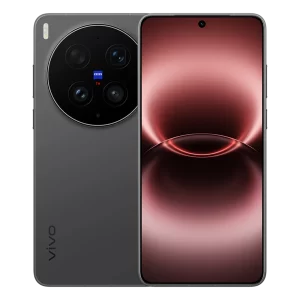
VIVO X300 ULTRA Technical Specifications
| Display | 6.82-inch 2K LTPO AMOLED, 144Hz |
| Processor | Snapdragon 8 Elite Gen 5 |
| RAM | 16 GB |
| Operating System | Android 16, OriginOS 6 |
| Battery | 6600 mAh, 100W wired charging |
| Rear Camera | 200MP Main + 200MP Periscope Telephoto + 50MP Ultrawide |
| Front Camera | 50MP |
Frequently Asked Questions About VIVO X300 ULTRA Factory Reset
What happens after I factory reset my Vivo X300 Ultra?
The smartphone will restart and boot up to the initial setup screen, exactly like the day you unboxed it. All of your installed applications, photos, custom settings, and synced accounts will be permanently deleted. Additionally, your Snapdragon 8 Elite Gen 5 processor will return to functioning at its peak out-of-the-box performance.
Can I factory reset the Vivo X300 Ultra if the screen is broken?
Yes, absolutely—provided that the display is functional enough for you to read the recovery menu. By using the hardware key combination (Volume Up + Power), you can navigate and execute the reset using physical buttons, making it possible to reset even if the touchscreen is shattered or unresponsive.
Is a factory reset the same as a hard reset on the Vivo X300 Ultra?
Yes, they mean the same thing. Phrases such as \”hard reset,\” \”factory reset,\” and \”master reset\” are often used interchangeably to describe the exact same procedure of erasing all user data and returning the smartphone’s software to its original factory configuration.