
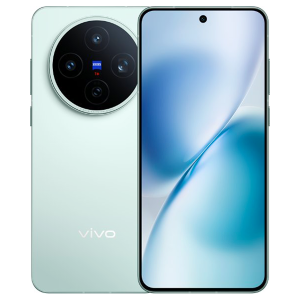
Searching for a clear, step-by-step guide to factory reset your Vivo X200T? This detailed tutorial will show you exactly how to hard reset, wipe all data, and bypass the screen lock on the Vivo X200T using the hardware key method via Android 16 Recovery Mode — no passwords, PC, or ADB tools required. Whether your device is locked out, frozen, unresponsive, or running slow, this method fully restores your phone to its original factory settings in just a few minutes.
Performing this hardware-level reset is the ultimate fix for dealing with stubborn software glitches, boot loops, and severe performance drops — and it works flawlessly even if your Vivo X200T has an unresponsive touchscreen or you simply cannot remember your pattern, PIN, or passcode. Furthermore, a hard reset is absolutely essential before you trade in, sell, or hand down your Vivo X200T to someone else, as it ensures all your personal files, synced accounts, and private data are permanently erased from the system.
[the_ad id=”6713″]
Before You Begin
⚠️ Important: A factory reset permanently erases all data from your VIVO X200T, including photos, apps, contacts, and accounts. Make sure to back up everything before proceeding.
ℹ️ Good to know: After a factory reset, you will need your Google account credentials to set up the device again due to Factory Reset Protection (FRP).
Hard Reset VIVO X200T — Step-by-Step Instructions
STEP 1 OF 9
Step 1.
Press and hold the Power button for about three seconds to open the Power Menu.
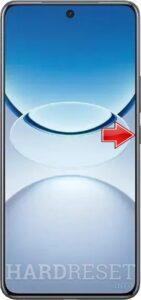
STEP 2 OF 9
Step 2.
Select Power off, and your device will shut down shortly.

STEP 3 OF 9
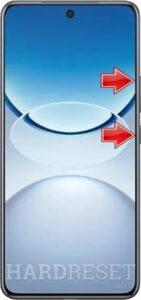
Step 3.
Press and hold both the Power button and the Volume Up button simultaneously.
STEP 4 OF 9
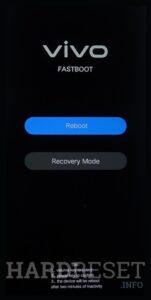
Step 4.
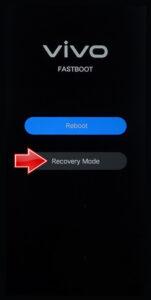
When Fastboot Mode appears, use the Side Buttons or the Touchscreen to navigate.
STEP 5 OF 9
Step 5.
Select Recovery Mode to proceed.
STEP 6 OF 9
Step 6.
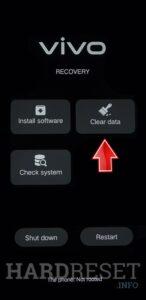
Tap Clear data, then select Clear all data.

STEP 7 OF 9
Step 7.
Confirm your selection by tapping OK in the pop-up window.

STEP 8 OF 9
Step 8.
Once the reset completes, select Return to go back.

STEP 9 OF 9
Step 9.
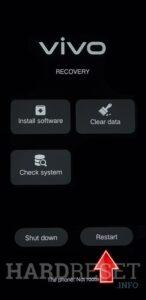
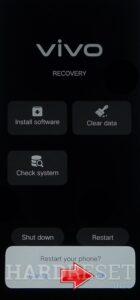
Choose Restart, then tap OK to confirm.
✅ Factory reset complete! Your VIVO X200T has been restored to its original factory state. All personal data, apps, and accounts have been erased.
[the_ad id=”6712″]
VIVO X200T Technical Specifications
| Display | 6.67-inch 1.5K AMOLED, 120Hz |
| Processor | MediaTek Dimensity 9400+ |
| RAM | 12GB / 16GB |
| Operating System | Android 16 with OriginOS 6 |
| Battery | 6200 mAh, 90W Wired, 40W Wireless Charging |
| Rear Camera | Triple 50 MP (Main, Ultra-wide, Telephoto) with ZEISS optics |
| Front Camera | 32 MP |
Frequently Asked Questions About VIVO X200T Factory Reset
What happens after I factory reset my Vivo X200T?
The device will reboot and launch the initial setup wizard, looking exactly as it did when you first took it out of the box. All personal files, customized settings, downloaded apps, and accounts will be completely erased. As a result, the powerful MediaTek Dimensity 9400+ chipset will run at peak, like-new efficiency.
Can I factory reset the Vivo X200T if the screen is damaged?
Absolutely, provided the display is still visible enough to read the recovery menu. Because the hard reset relies entirely on physical buttons (Power and Volume keys) for navigation, a cracked or partially unresponsive touchscreen will not prevent you from wiping the device.
Are a factory reset and a hard reset the same thing on the Vivo X200T?
Yes, they are. Phrases like factory reset, hard reset, and master reset are generally used interchangeably. They all describe the exact same procedure: wiping every piece of personal data and restoring the smartphone’s software to its factory-fresh default settings.