
Are you searching for a clear, step-by-step guide to factory reset your Redmi Note 14s? This complete tutorial will show you exactly how to hard reset, wipe all data, and bypass screen locks on the Redmi Note 14s using the physical hardware buttons in Android 15 Recovery Mode. You won’t need any passwords, a computer, or specialized ADB tools. If your smartphone is locked, frozen, acting sluggish, or completely unresponsive, this quick method will fully restore your device to its original factory configuration in just a few moments.
Executing a hardware-level reset is the most dependable way to fix stubborn software glitches, endless boot loops, and severe performance drops. It works flawlessly even if your touchscreen isn’t responding or you’ve completely forgotten your PIN, pattern, or passcode. Furthermore, performing this deep wipe is highly recommended before you sell, trade in, or give away your Redmi Note 14s, as it guarantees all your personal files, synced accounts, and private data are irreversibly erased.

[the_ad id=”6713″]
Before You Begin
⚠️ Important: A factory reset permanently erases all data from your REDMI NOTE 14S, including photos, apps, contacts, and accounts. Make sure to back up everything before proceeding.
ℹ️ Good to know: After a factory reset, you will need your Google account credentials to set up the device again due to Factory Reset Protection (FRP).
Hard Reset REDMI NOTE 14S — Step-by-Step Instructions
STEP 1 OF 8
Step 1.
At first, turn off the phone by using the Power button + Volume Up.
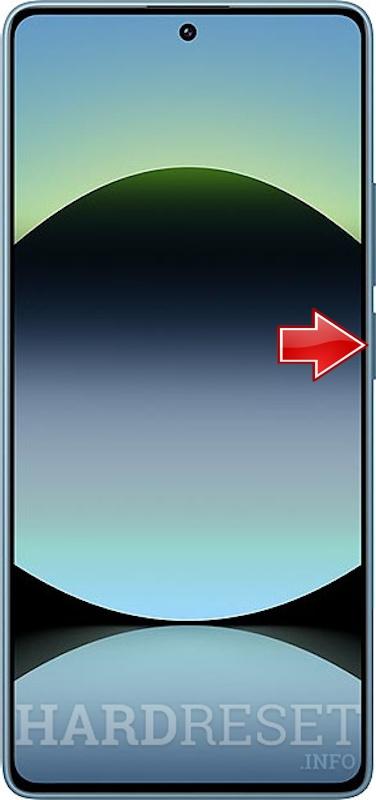
STEP 2 OF 8
Step 2.
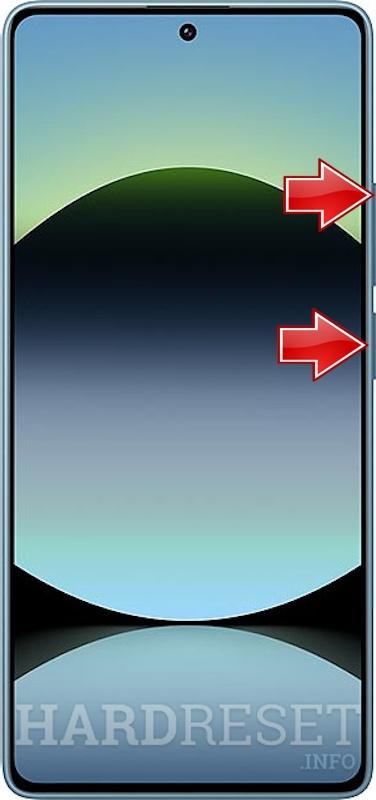
Now hold down the Power key + the Volume Up simultaneously.
STEP 3 OF 8
Step 3.
When the REDMI logo appears, let go of the Power key, but keep pushing the Volume Up.

STEP 4 OF 8
Step 4.
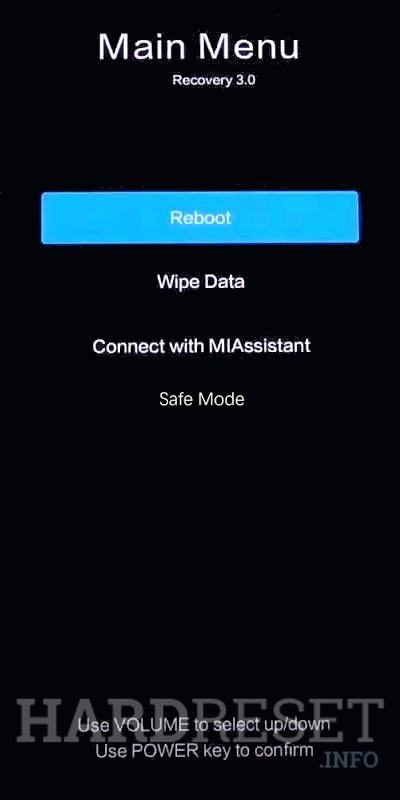
All right, here is the Recovery mode menu.
STEP 5 OF 8
Step 5.
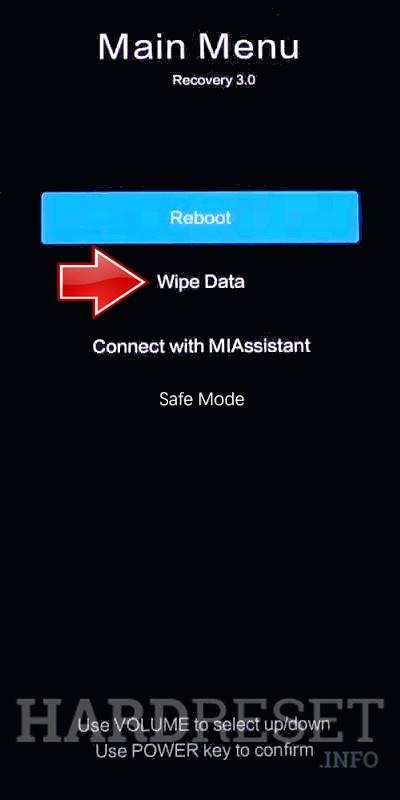
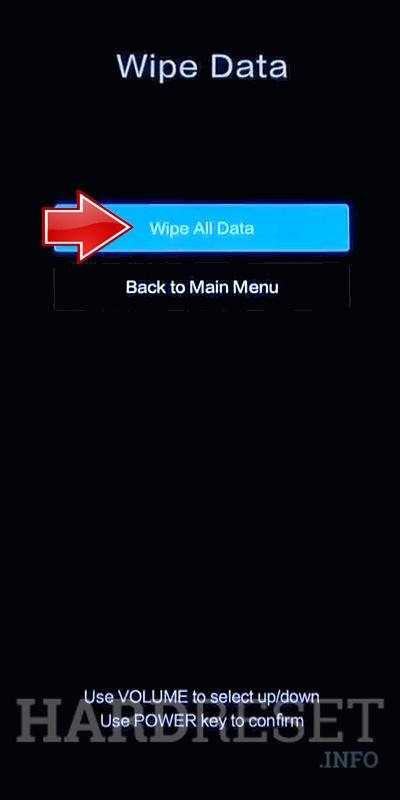
Go to the Wipe Data chapter in this step. Use the Volume rocker to navigate and the Power button to select.
STEP 6 OF 8
Step 6.
Here, choose the Wipe All Data procedure and then, select the Confirm position to start.

STEP 7 OF 8
Step 7.
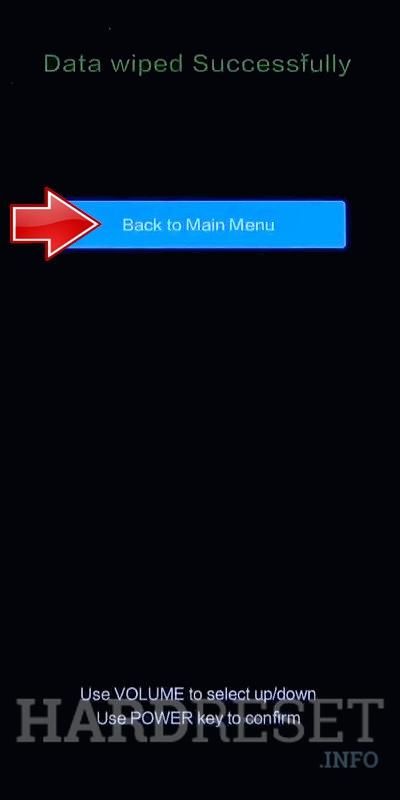
After, use the Back to Main Menu tab.
STEP 8 OF 8
Step 8.
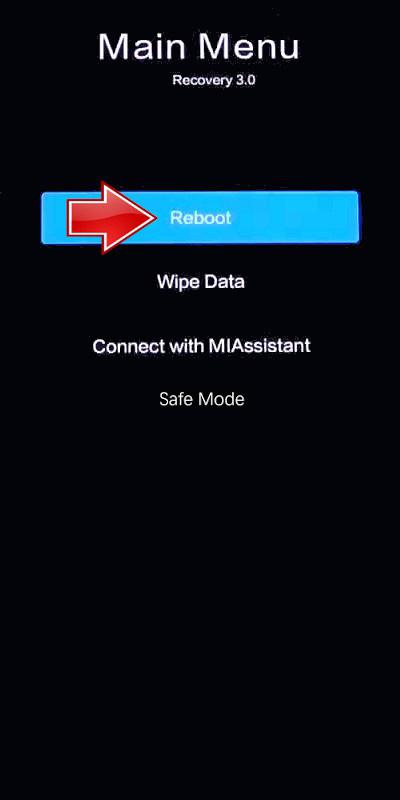
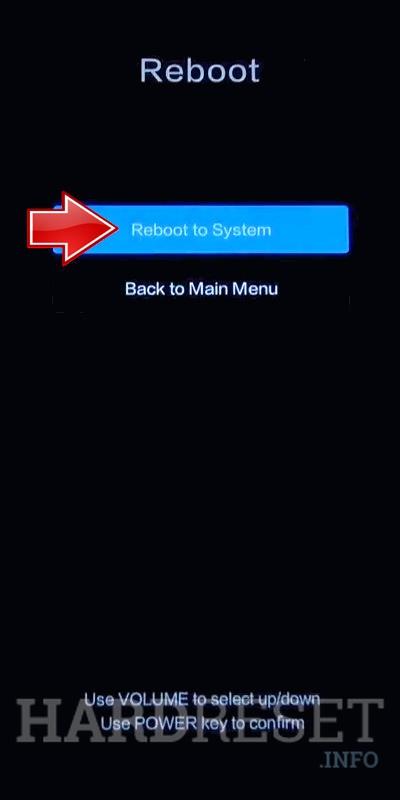
Finally, pick the Reboot → the Reboot to System to activate the device back.
✅ Factory reset complete! Your REDMI NOTE 14S has been restored to its original factory state. All personal data, apps, and accounts have been erased.
[the_ad id=”6712″]
REDMI NOTE 14S Technical Specifications
| Display | 6.67″ AMOLED, 120Hz, 1080 x 2400 pixels |
| Processor | MediaTek Helio G99 Ultra |
| RAM | 8GB / 12GB |
| Operating System | Android 15, HyperOS |
| Battery | 5000 mAh, 67W Fast Charging |
| Rear Camera | 200 MP (main) + 8 MP (ultrawide) + 2 MP (macro) |
| Front Camera | 16 MP |
Frequently Asked Questions About REDMI NOTE 14S Factory Reset
What happens after I factory reset my Redmi Note 14s?
The phone restarts and loads the initial setup wizard, just like when you first unboxed it. All apps, photos, settings, and accounts are permanently removed. The MediaTek Helio G99 Ultra chipset will perform at its original speed.
Can I factory reset Redmi Note 14s if the screen is broken?
Yes, as long as you can see the recovery menu. The hardware key method (Volume Up + Power) works even with a cracked or partially broken screen since navigation uses physical buttons only.
Is factory reset the same as hard reset on Redmi Note 14s?
Yes. The terms “factory reset,” “hard reset,” and “master reset” all refer to the same process — erasing all user data and restoring the device to its original manufacturer settings.