
Searching for a complete guide to factory reset your Realme GT 7 Pro? This detailed tutorial will take you step-by-step through the process of hard resetting, wiping all data, and bypassing the screen lock on the Realme GT 7 Pro. By utilizing the hardware button method via Android 15 Recovery Mode, you can accomplish this without needing a PC, passwords, or ADB software. Whether your smartphone is stuck in a boot loop, completely frozen, or dealing with major lag, this fast solution will wipe your device clean and revert it to its out-of-the-box factory state in mere minutes.
Performing a hardware-level master reset is one of the most effective troubleshooting steps for tackling stubborn software glitches, random reboots, and overall performance drops. It works flawlessly even if your screen is totally unresponsive to touch or if you have been locked out by a forgotten password, PIN, or pattern. Furthermore, a hard reset is absolutely crucial before you sell, hand down, or trade in your Realme GT 7 Pro, as it guarantees that all your private files, linked accounts, and personal information are irrevocably erased from the handset.

[the_ad id=”6713″]
Before You Begin
⚠️ Important: A factory reset permanently erases all data from your REALME GT 7 PRO, including photos, apps, contacts, and accounts. Make sure to back up everything before proceeding.
ℹ️ Good to know: After a factory reset, you will need your Google account credentials to set up the device again due to Factory Reset Protection (FRP).
Hard Reset REALME GT 7 PRO — Step-by-Step Instructions
STEP 1 OF 9
Step 1.
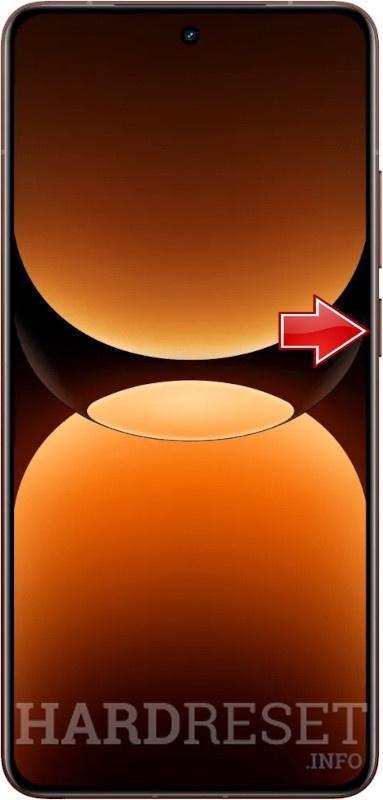
Firstly, you should fully deactivate the phone, Open the Power Menu by holding the Power key for a few seconds.
STEP 2 OF 9
Step 2.
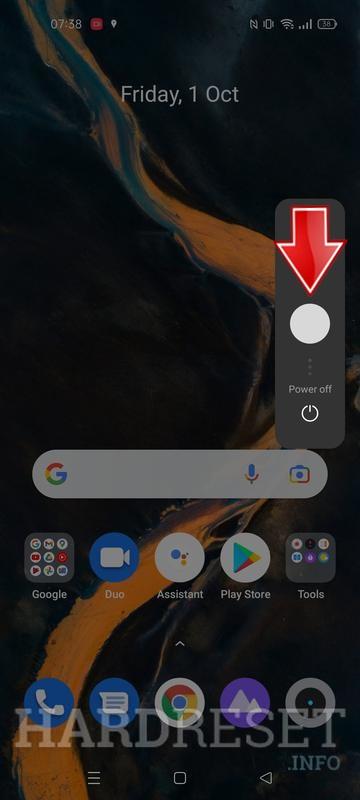
Move the switcher down to choose the Power off method and wait for a while.

STEP 3 OF 9
Step 3.
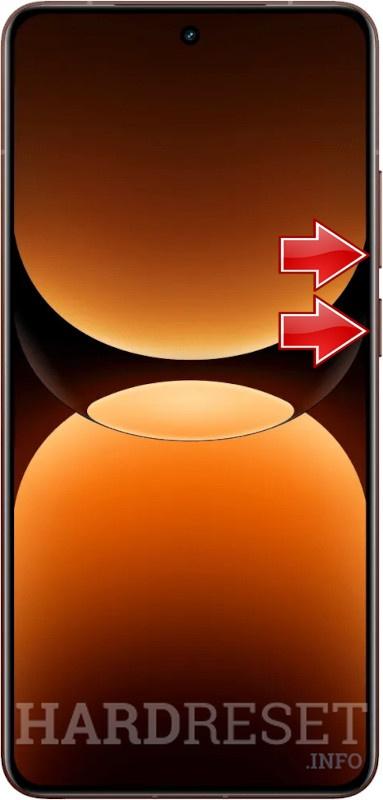
In the same time, hold down the Power button with the Volume Down key.
STEP 4 OF 9
Step 4.
Let go the combination, when the language menu shows up. Select the one by using the Volume rocker to scroll and the Power button to select.

STEP 5 OF 9
Step 5.
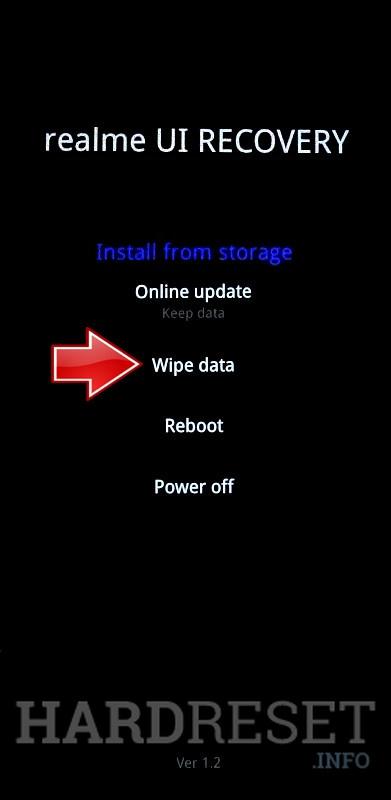
Then, we ready to complete factory settings restoring process. Use the same keys or the touchscreen to navigate, Choose the Wipe data section here.
STEP 6 OF 9
Step 6.
You will see the Verification Code on the screen. Type it in to confirm the operation.

STEP 7 OF 9
Step 7.
Next, hit the Format data tab and the Format position.


STEP 8 OF 9
Step 8.
After a while, the procedure will end. Use the appeared OK button to continue.

STEP 9 OF 9
Step 9.
From the menu, pick the Reboot → the OK.


✅ Factory reset complete! Your REALME GT 7 PRO has been restored to its original factory state. All personal data, apps, and accounts have been erased.
[the_ad id=”6712″]
REALME GT 7 PRO Technical Specifications
| Display | 6.78-inch 120Hz LTPO AMOLED |
| Processor | Qualcomm Snapdragon 8 Elite |
| RAM | 12GB / 16GB LPDDR5X |
| Operating System | Android 15 (Realme UI 6.0) |
| Battery | 5800 mAh / 6500 mAh with 120W Fast Charging |
| Rear Camera | 50MP Primary + 50MP 3x Telephoto + 8MP Ultrawide |
| Front Camera | 16MP |
Frequently Asked Questions About REALME GT 7 PRO Factory Reset
What happens after I factory reset my Realme GT 7 Pro?
The phone reboots and brings up the initial setup screen, exactly like when you first took it out of the box. All your downloaded applications, media, configurations, and Google accounts will be irreversibly deleted. Your Snapdragon 8 Elite processor will return to functioning at its peak out-of-the-box performance.
Can I factory reset the Realme GT 7 Pro if the screen is broken?
Yes, provided you are able to view the Android recovery screen. The hardware key sequence (Volume Up + Power) functions perfectly even if the touchscreen is shattered or unresponsive, because you only need the physical side buttons to navigate and confirm.
Is a factory reset the same as a hard reset on the Realme GT 7 Pro?
Absolutely. The phrases “factory reset,” “hard reset,” and “master reset” are interchangeable. They all describe the exact same procedure of securely wiping your local data and returning the smartphone to its original factory parameters.