
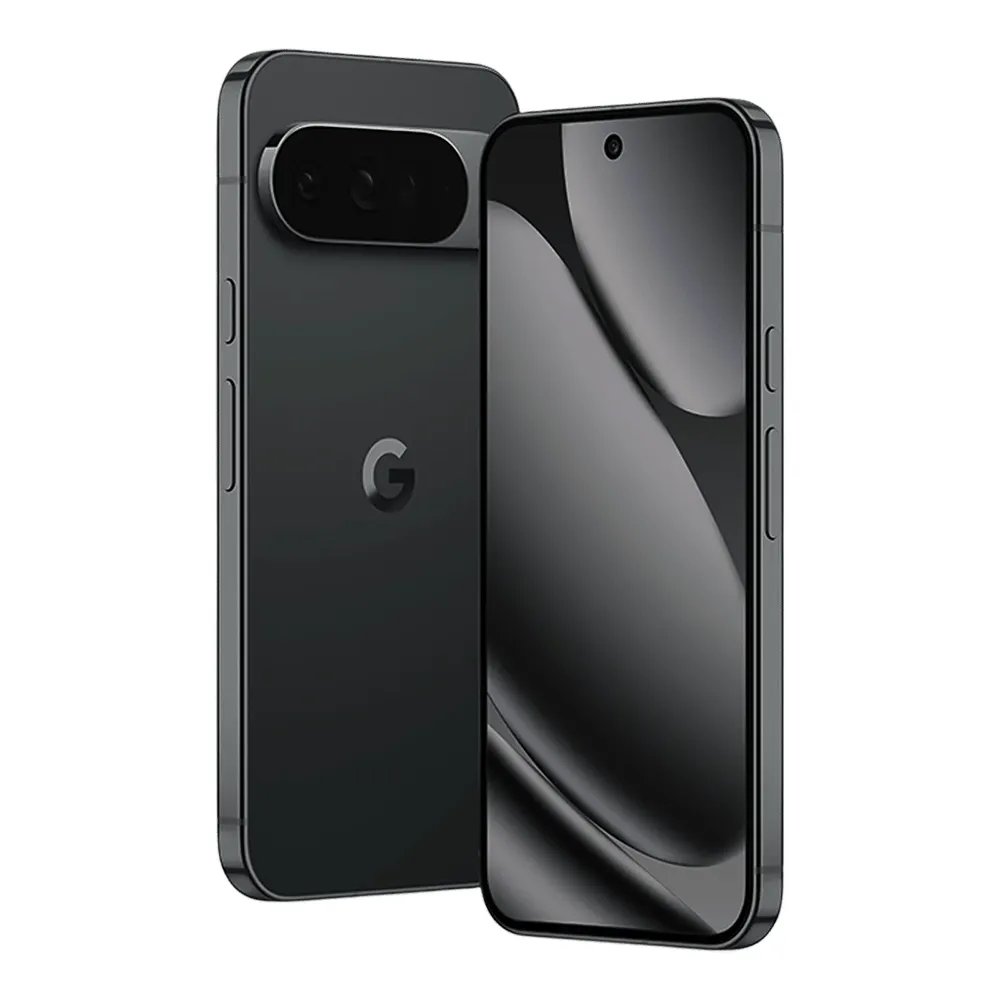
Searching for a complete guide on how to factory reset your Google Pixel 10, 10 Pro, or 10 Pro XL? This detailed tutorial will take you step-by-step through the process of hard resetting, wiping all data, and bypassing the lock screen on the Pixel 10 series using the physical buttons in Android 16 Recovery Mode. You will not need a computer, passwords, or complex ADB tools. If your smartphone is frozen, locked, glitching, or sluggish, this simple procedure will quickly return your device to its fresh out-of-the-box factory state.
A hardware key reset is the most effective way to troubleshoot stubborn software glitches, endless boot loops, and severe performance drops — even if your screen is completely unresponsive or you have forgotten your PIN, pattern, or passcode. Additionally, this is an essential step if you are planning to sell, trade in, or give away your Google Pixel 10, 10 Pro, or 10 Pro XL, as it guarantees that all your private files, photos, and Google accounts are securely and permanently erased.
[the_ad id=”6713″]
Before You Begin
⚠️ Important: A factory reset permanently erases all data from your PIXEL 10, 10 PRO, AND 10 PRO XL, including photos, apps, contacts, and accounts. Make sure to back up everything before proceeding.
ℹ️ Good to know: After a factory reset, you will need your Google account credentials to set up the device again due to Factory Reset Protection (FRP).
Hard Reset PIXEL 10, 10 PRO, AND 10 PRO XL — Step-by-Step Instructions
STEP 1 OF 8
Step 1.
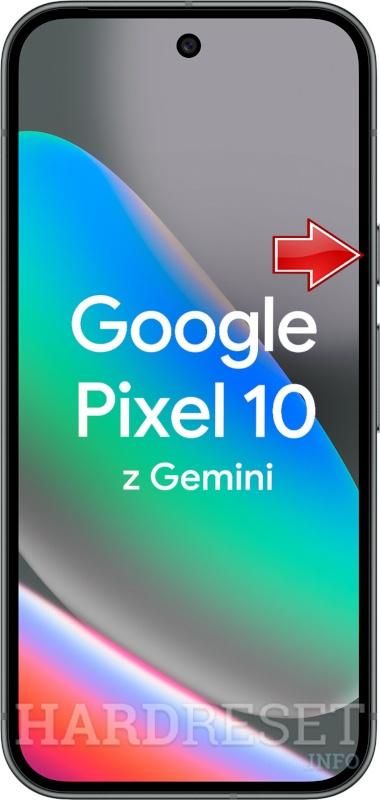
First, power down your GOOGLE Pixel 10 using the Power key to initiate the procedure.
STEP 2 OF 8
Step 2.
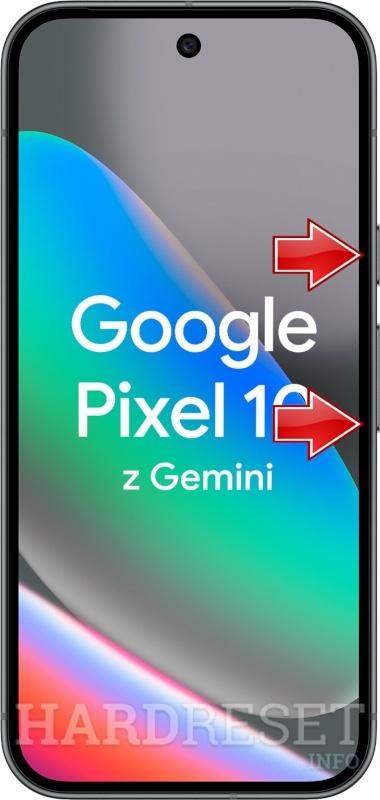
Next, simultaneously press and hold the Power button along with the Volume Down button to enter advanced boot options.
STEP 3 OF 8
Step 3.
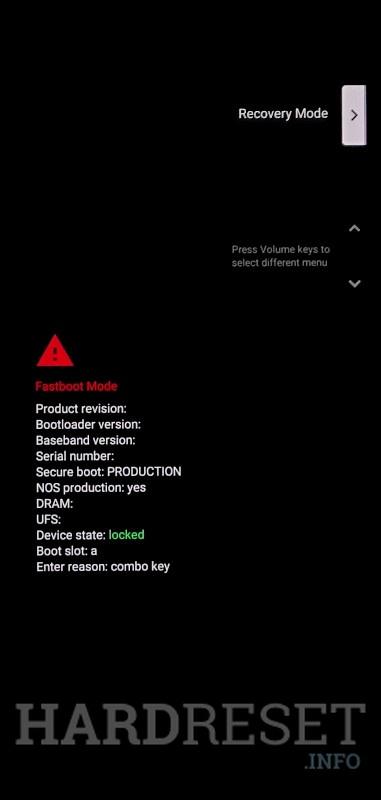
Once the Fastboot mode screen appears, utilize the Volume rocker to navigate through the menu and the Power key to select the Recovery Mode choice.
STEP 4 OF 8
Step 4.
When the No command notice is displayed, press both the Power key and the Volume Up key together to bypass it.

STEP 5 OF 8
Step 5.
Then, use the Volume rocker to scroll to the Wipe data/factory reset option and press the Power key to confirm your selection.

STEP 6 OF 8
Step 6.
Confirm by choosing Factory data reset to fully execute the reset procedure.
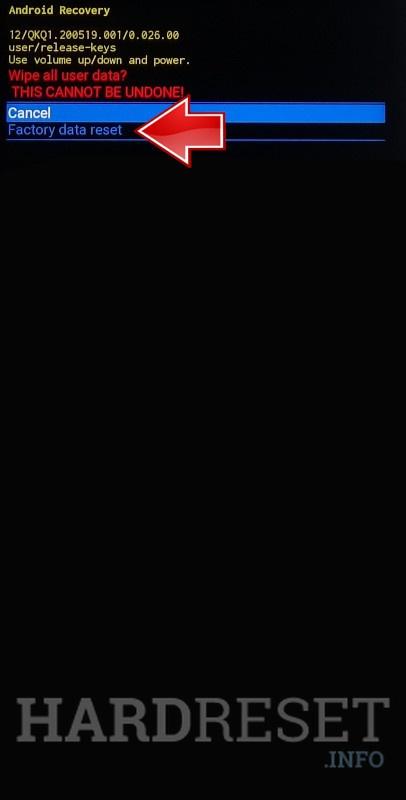
STEP 7 OF 8
Step 7.
Once the reset is finished, select Reboot system now to restart your device and complete the process.
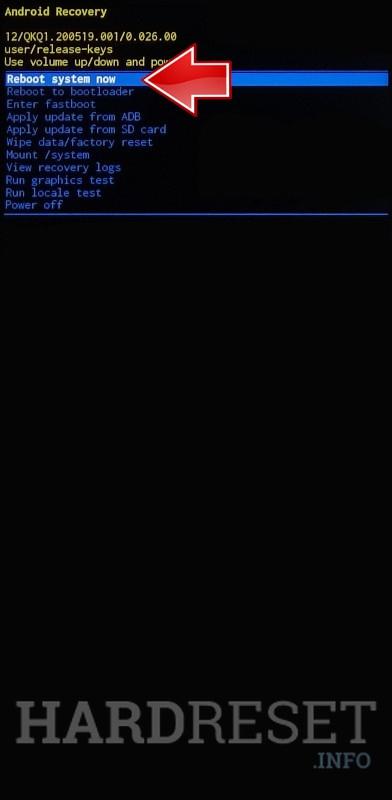
STEP 8 OF 8
Step 8.
Congratulations! Your GOOGLE Pixel 10 has been successfully reset and rebooted.
✅ Factory reset complete! Your PIXEL 10, 10 PRO, AND 10 PRO XL has been restored to its original factory state. All personal data, apps, and accounts have been erased.
[the_ad id=”6712″]
PIXEL 10, 10 PRO, AND 10 PRO XL Technical Specifications
| Display | 6.3″ OLED (Pixel 10 & 10 Pro) / 6.8″ LTPO OLED (Pixel 10 Pro XL) |
| Processor | Google Tensor G5 |
| RAM | 12GB (Pixel 10) / 16GB (Pro & Pro XL) |
| Operating System | Android 16 |
| Battery | 4970 mAh (Pixel 10) / 4870 mAh (Pro) / 5200 mAh (Pro XL) |
| Rear Camera | 48MP+13MP+10.8MP (Pixel 10) / 50MP+48MP+48MP (Pro & Pro XL) |
| Front Camera | 10.5MP (Pixel 10) / 42MP (Pro & Pro XL) |
Frequently Asked Questions About PIXEL 10, 10 PRO, AND 10 PRO XL Factory Reset
What happens after I factory reset my Pixel 10, 10 Pro, or 10 Pro XL?
Your device will reboot and display the initial setup wizard, exactly as it did when you first took it out of the box. All installed applications, personal media, custom settings, and linked Google accounts are permanently deleted. In addition, the Google Tensor G5 processor will run at its optimal, original speed without any software bloat slowing it down.
Can I factory reset my Pixel 10 series phone if the screen is broken?
Yes, provided the screen still displays the Android Recovery menu. The hardware button combination method (Power and Volume down) allows you to perform the reset even with a shattered or unresponsive touch display, as all navigation relies solely on the physical keys.
Is a factory reset the same as a hard reset on the Pixel 10, 10 Pro, and 10 Pro XL?
Absolutely. The phrases \”factory reset,\” \”hard reset,\” and \”master reset\” are used interchangeably. They all describe the exact same procedure: wiping all of your personal data and reverting the smartphone back to its default, factory-fresh state.