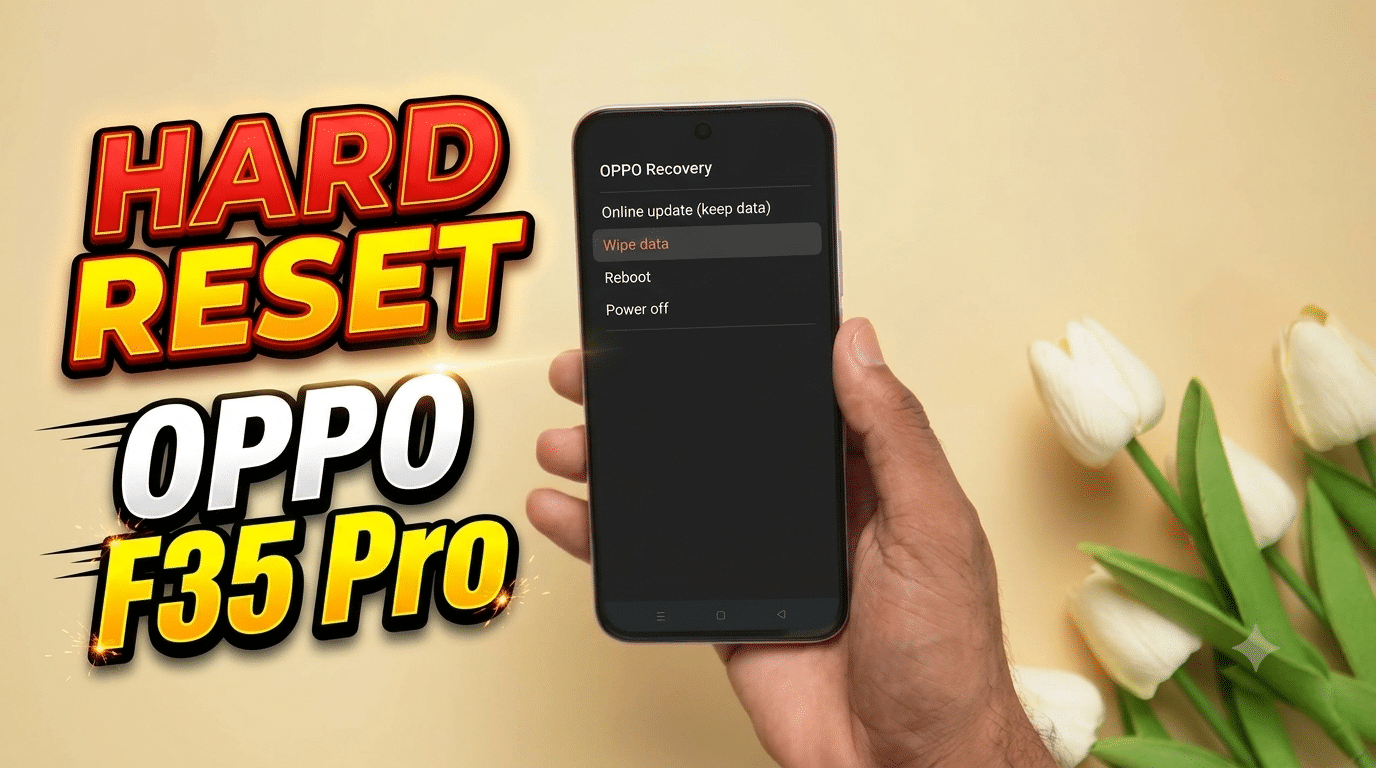
Searching for a simple way to factory reset your OPPO F35 Pro? This detailed tutorial shows you exactly how to hard reset, wipe all personal data, and bypass the screen lock on the OPPO F35 Pro using the hardware button method through Android 15 Recovery Mode — no password, computer, or ADB tools required. Whether your phone is locked out, frozen, unresponsive, or lagging badly, this method fully restores your device to its original factory settings in just a few minutes.
This hardware-based reset is the most dependable fix for stubborn software glitches, boot loops, and performance problems — and it works even when your touchscreen has stopped responding or you have forgotten your PIN, pattern, or password. It is also the essential step to take before selling, trading in, or gifting your OPPO F35 Pro, guaranteeing that all personal data, accounts, and files are permanently erased from the device.

[the_ad id=”6713″]
Before You Begin
⚠️ Important: A factory reset permanently erases all data from your OPPO F35 PRO, including photos, apps, contacts, and accounts. Make sure to back up everything before proceeding.
ℹ️ Good to know: After a factory reset, you will need your Google account credentials to set up the device again due to Factory Reset Protection (FRP).
Hard Reset OPPO F35 PRO — Step-by-Step Instructions
STEP 1 OF 7
Step 1.
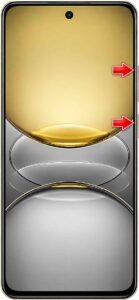
Start by pressing and holding the Power button and the Volume Up button until the screen shuts down.
STEP 2 OF 7
Step 2.
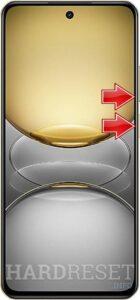
Once it’s turned off, hold the power button and volume down button. When you see the Oppo logo, let go of the power button, but keep holding the volume down button.
STEP 3 OF 7
Step 3.
Tap on the English language.

STEP 4 OF 7
Step 4.
it will send you to recovery mode, now tap on format data.

STEP 5 OF 7
Step 5.
Enter the given verification code.

STEP 6 OF 7
Step 6.
Next, tap on format option to confirm it.

STEP 7 OF 7
Step 7.
Hard Reset is Done.
✅ Factory reset complete! Your OPPO F35 PRO has been restored to its original factory state. All personal data, apps, and accounts have been erased.
[the_ad id=”6712″]
OPPO F35 PRO Technical Specifications
| Display | 6.7-inch AMOLED, FHD+ resolution, 120Hz refresh rate |
| Processor | MediaTek Dimensity 7300, octa-core up to 2.5GHz |
| RAM | 8GB LPDDR4X (with extended RAM support up to 8GB) |
| Operating System | Android 15 with ColorOS 15 |
| Battery | 5000mAh with 45W SUPERVOOC fast charging |
| Rear Camera | 50MP main sensor + 2MP depth sensor with LED flash |
| Front Camera | 32MP selfie camera |
Frequently Asked Questions About OPPO F35 PRO Factory Reset
What happens after I factory reset my OPPO F35 Pro?
The phone reboots into the initial setup wizard, just like when you first unboxed it. All apps, photos, settings, and accounts are permanently removed. The MediaTek Dimensity 7300 chipset will perform at its original speed.
Can I factory reset OPPO F35 Pro if the screen is broken?
Yes, as long as you can see the recovery menu. The hardware key method (Volume Down + Power) works even with a cracked or partially broken screen since navigation uses physical buttons only.
Is factory reset the same as hard reset on OPPO F35 Pro?
Yes. The terms “factory reset,” “hard reset,” and “master reset” all refer to the same process — erasing all user data and restoring the device to its original manufacturer settings.