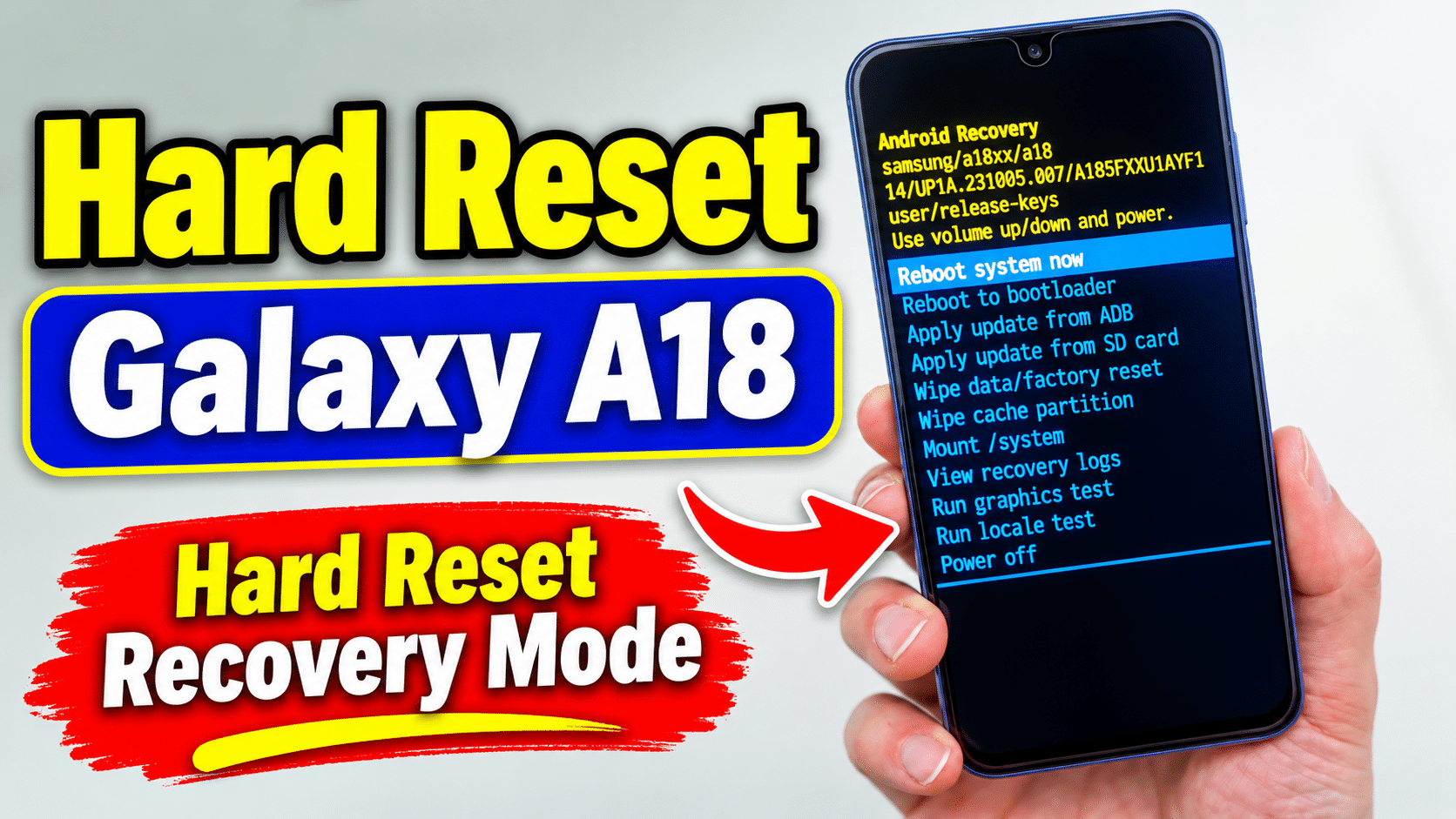
Looking for a step-by-step tutorial to factory reset your SAMSUNG GALAXY A18? This comprehensive guide walks you through how to hard reset, erase all data, and remove the screen lock on the SAMSUNG GALAXY A18 using the hardware button method via Android 14 Recovery Mode — no passwords, PC, or ADB tools required. Whether your device is locked out, frozen, unresponsive, or running slow, this method fully restores your phone to its original factory settings in just a few minutes.
This hardware-based reset is the most reliable solution for troubleshooting persistent software bugs, boot loops, and performance issues — and works even when your touchscreen is unresponsive or you have forgotten your PIN, pattern, or password. It is also the recommended step before selling, trading in, or gifting your SAMSUNG GALAXY A18, ensuring all personal data, accounts, and files are permanently wiped from the device.

[the_ad id=”6713″]
Before You Begin
⚠️ Important: A factory reset permanently erases all data from your GALAXY A18, including photos, apps, contacts, and accounts. Make sure to back up everything before proceeding.
ℹ️ Good to know: After a factory reset, you will need your Google account credentials to set up the device again due to Factory Reset Protection (FRP).
Hard Reset GALAXY A18 — Step-by-Step Instructions
STEP 1 OF 6
Step 1.
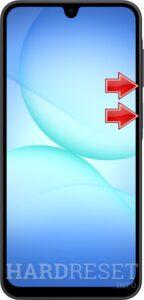
First, you must completely power off your device. To do this, press and hold the Volume Down key in combination with the Power button. Keep holding both keys until the screen turns black and the phone shuts down.
STEP 2 OF 6
Step 2.
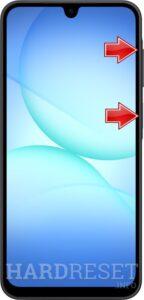
In this next phase, press and hold the Volume Up key and the Power button at the same time. When you see the Samsung logo, release the Power button while continuing to hold the Volume Up key.
STEP 3 OF 6
Step 3.
When the Recovery Mode menu successfully appears on your display, you can let go of all the buttons. You are now in the correct menu to proceed with the reset.

STEP 4 OF 6
Step 4.
To navigate this menu, use the Volume buttons to scroll through the options. Move the selection down to highlight Wipe data/factory reset, and then use the Power button to confirm your choice.

STEP 5 OF 6
Step 5.
On the subsequent screen, you will be asked to confirm the action. Use the Volume keys to select Factory data reset, and press the Power button one more time to initiate the complete data erasure.

STEP 6 OF 6
Step 6.
Once the data wipe is complete, you will return to the main recovery menu. Ensure the Reboot system now option is selected, and then press the Power button to restart your SAMSUNG Galaxy A18. The device will now boot up with a fresh system.

✅ Factory reset complete! Your GALAXY A18 has been restored to its original factory state. All personal data, apps, and accounts have been erased.
[the_ad id=”6712″]
GALAXY A18 Technical Specifications
| Display | 6.6-inch Super AMOLED, 1080 x 2340 pixels, 120Hz refresh rate |
| Processor | Exynos 1330 (5nm) octa-core |
| RAM | 4GB / 6GB / 8GB |
| Operating System | Android 14 with One UI 6.1 |
| Battery | 5000 mAh, 25W wired charging |
| Rear Camera | 50 MP (wide) + 5 MP (ultrawide) + 2 MP (macro) |
| Front Camera | 13 MP |
Frequently Asked Questions About GALAXY A18 Factory Reset
What happens after I factory reset my Galaxy A18?
The phone restarts and loads the initial setup wizard, just like when you first unboxed it. All apps, photos, settings, and accounts are permanently removed. The Exynos 1330 chipset will perform at its original speed.
Can I factory reset Galaxy A18 if the screen is broken?
Yes, as long as you can see the recovery menu. The hardware key method (Volume Up + Power) works even with a cracked or partially broken screen since navigation uses physical buttons only.
Is factory reset the same as hard reset on Galaxy A18?
Yes. The terms “factory reset,” “hard reset,” and “master reset” all refer to the same process — erasing all user data and restoring the device to its original manufacturer settings.